Installing Software
Before installing the PROFIBUS-DP master board manufactured by molex to the PC with Epson RC+ 8.0 installed, you must install the applicomIO Console application and drivers according to the type of board you are using.
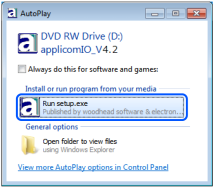
Insert the applicomIO Console CD-ROM to the PC with Epson RC+ 8.0 installed.
The dialog box shown below appears. Select "Run setup.exe".
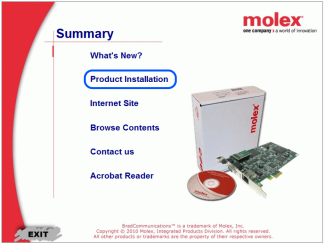
The [Summary] dialog box appears. Select "Product Installation".
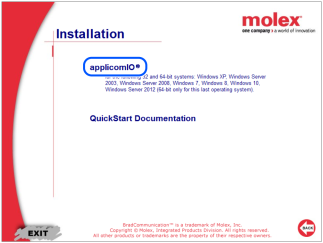
The [Installation] dialog box appears. Select [applicomIO].
If the Microsoft .NET Framework 4.0 is not installed, following dialog box appears.
Click [Install].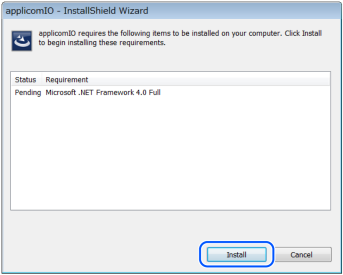
The applicomIO Console application installer runs and the [Welcome to the InstallShield Wizard for applicomIO] dialog box appears.
Click [Next].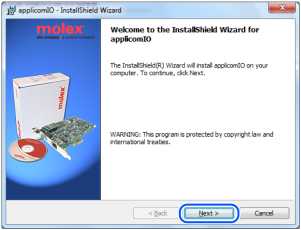
The [License Agreement] dialog box appears.
Read the software license agreement and click [Next].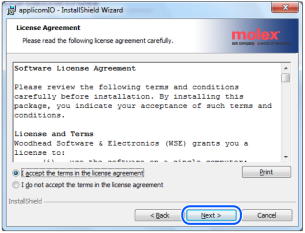
The [Customer Information] dialog box appears. Register the user information.
Enter the User Name and Organization.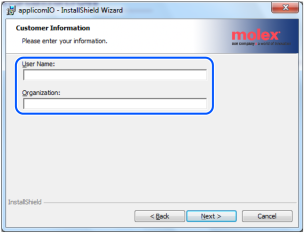
The [Destination Folder] dialog box appears.
Specify the installation folder for the applicomIO Console application.
The default specifies here:
C:\Program Files(x86)\BradCommunications\applicomIO\4.2
If you agree to the default installation folder, click [Next].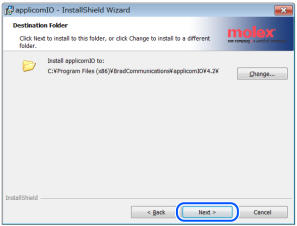
The [Ready to Install the Program] dialog box appears.
Click [Install].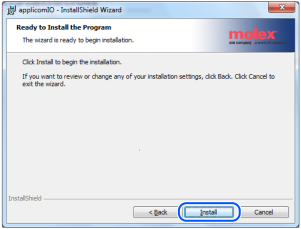
Installation of applicomIO Console application starts.
After the installation completes, the [InstallShield Wizard Completed] dialog box appears. Click [Finish].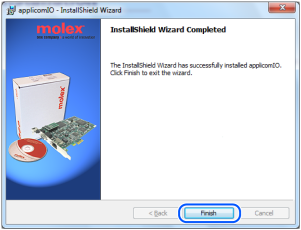
The message prompting you to reboot your PC appears.
Select [Yes] and reboot the PC.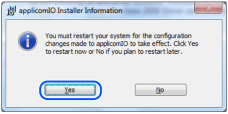
Refer to the following section and install the PROFIBUS-DP master board manufactured by molex.
Installing a Board