DeviceNet Network Construction
The applicomIO Console application has a network diagnostic function (Diagnostic). The procedure for using the Diagnostic is described below.
Open the Diagnostic window, click the magnifying grass icon, and select the "Channel" on the device tree in the left side of the window. The window changes as shown below.
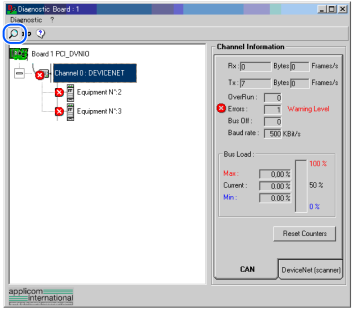
The [CAN] and [DeviceNet (scanner)] tabs appear on the data display in the right side of the window.
The [CAN] Controller status of the scanner board is displayed on the CAN Controller.Indication Description Rx Number of receive data bytes and frames Tx Number of send data bytes and frames OverRun Number of communication overrun errors detected by CAN Controller Errors Number of communication errors detected by CAN Controller Bus Off Busoff detection Baud Rate Baud Rates Bus Load Load on the bus (maximum, minimum, current)
KEY POINTS
When the load exceeds 60%, the DeviceNet network communication will be unstable, for example, more communication errors.
For the procedure for master configuration, refer to respective master device manuals. For Epson RC+ master configuration, refer to the following section.
Select the [DeviceNet (scanner)] tab. The window changes as shown below.
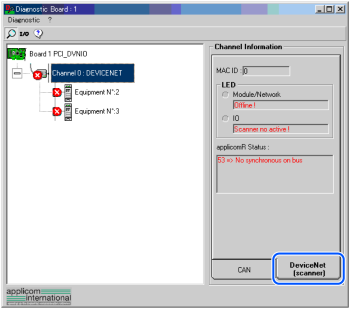
Indication Description MAC ID MAC ID specified for the scanner board Module/NetWork LED Network Status (NS) LED status IO LED Module Status (MS) LED status applicomR Status Scanner board status
The scanner board status is shown in the "Code No. → Comment" form. The table below shows the code numbers.
| Status Code | Description | |
|---|---|---|
| General | Protocol | |
| 0 | No fault detected. The function was performed correctly. | |
| 4 | Inaccessible data. Additional information: The remote device is in error. Check its status. | |
| 32 | The parameters passed to the functions are not correct (eg: Number of requested variables too large) | |
| 33 | Response time-out error. Additional information: The device does not respond. Check the device status and the wiring. The DeviceNet master has no device to be scanned in the configuration. | |
| 34 | Physical defect on the line. Additional information: No 24V power supply was detected. The CAN component of the applicomIO® interface is "Bus Off". Check the network wiring and Baud Rate. | |
| 36 | Device not configured. Define the device configuration with the applicomIO® Console and re-initiate the initialization of the applicomIO® product by running the PCInitIO | |
| 45 | Non-resident dialogue software. Additional information: Initialize the applicomIO® interface before use by running the PCInitIO | |
| 47 | Targeted applicomIO® card invalid or incorrectly initialized by the function IO_Init | |
| 53 | Synchronization problem on the line. The DeviceNet master is "off line" (power supply not detected or the CAN component of the applicomIO® is "Bus Off"). Check the network wiring and Baud Rate. | |
| 55 | Response time-out exceeded. The device accepted the connection but did not respond the request. Check the device status. | |
| 65 | Connection denied. Additional information: Connection to the DeviceNet master is in progress or refused by the device. | |
| 70 | Connection finished. Additional information: Duplication of MAC ID detected on the DeviceNet network. Modify the MAC ID of the DeviceNet master. | |
| 79 | Profile incompatible. Additional information: The device does not match the configuration. Check the device identity and the connection sizes. | |
| 63 | Indicates that a communication error has been encountered on serial Port. | |
| 66 | Not enough applicomIO® interface memory. | |
| 93 | Driver cannot be accessed. | |
| 99 | Indicates that applicomIO® solution is already running. | |
| 255 | Indicates that the local input buffer was not updated beforehand by the function IO_RefreshInput. | |
When you click [I/O] icon on the upper left of the window, the window changes as shown below.
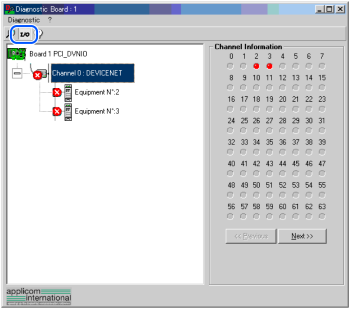
Each slave device status is shown in the right side of the window.
A green circle indicates that the communication of the corresponding device is normal, and a red circle indicates that there is a communication error. A gray circle indicates that the corresponding device does not exist.When you select [Equipment] on the device tree in the left side of the window, the window changes as shown below.
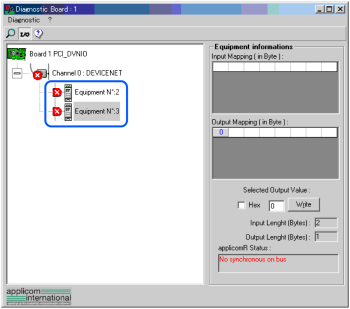
The input and output statuses of the selected device are shown in the right side of the window.
If you want to change output data, click the byte number you want to change in [Output Mapping]. Then, enter a value in [Selected Output Value:] - [Write] and click the [Write] button.