Wait
A command to wait until whether the specified time elapsed or established the specified conditions.
It’s useful when start moving after a while after gripped a work by the hand.
Detailed Settings
Wait Target
Specify what to wait. Time
Time
The program will pause for the specified time (in seconds).
The waiting time range is from 0.00 to 2147483.00 seconds (to two decimal places). Condition
Restarts the program from next command after established the condition of waiting.
KEY POINTS
When some conditions are set, the judgment is made in order from the condition set first. For example, when condition 1, 2 and 3 are set, the condition 1 and 2 is judged first. After that, the result of condition 1, 2 and condition 3 is judged.
Steps to set conditions
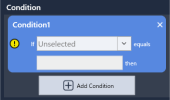
Tap [+Add Condition].

Tap the dropdown menu and select the type of condition you want to set.
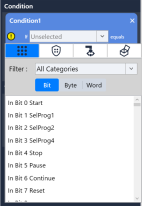
- When setting with
 (input number)
Select the number of Input signal and the state of the Input signal like the following.- By bit:
“If (Input bits) equals (state: ON/OFF)” - By byte or word:
“If (Input byte or word & mask) equals (state: numerical value)”
- By bit:
KEY POINTS
Available to select category of Input and show less as you like by using the filter.
When setting with
 (hand)
Judged by whether the hand is gripping a workpiece or not. Input like following below.
“If (Hand (Gripped / Released)) equals (True / False)”When setting with
 (RC+)
(RC+)
This option is only available if you have configured the settings to import RC+ projects.
The conditions are selected in the following format:
"If (variable label/variable name) is (xx)"
From the list of global variables defined in the imported RC+ project, select the variable to be used for the conditional check.
The format of the condition will vary depending on the variable you select.Variable type Options/Input Restrictions Operators used when setting conditions Byte 2 byte integer, -128 to +127 Only integers can be entered = > < >= <= <> Integer 2 byte integer, -32768 to 32767 Short 2 byte integer, -32768 to 32767 Int32 4 byte integer, -2147483648 to 2147483647 Long 4 byte integer, -2147483648 to 2147483647 Ubyte Unsigned 2-byte integer, 0 to 255 0 or a greater integer can be entered = > < >= <= <> Ushort Unsigned 2-byte integer, 0 to 65535 UInt32 Unsigned 4-byte integer, 0 to 4294967295 - If you want to add more conditions, tap the [+] button to add conditions.
Available to add operators between conditions when there are more than two conditions.
And: Both condition A and condition B is established.
Or: Whether condition A or condition B is established.
Timeout
If you set a time in the [Conditions] section, you can set a timeout.
When 0 is selected:
Waits unconditionally until specified conditions established.
If a value other than 0 is specified: After the specified timeout period has elapsed, the program will resume regardless of whether the conditions are met.
KEY POINTS
For example, if you want to set the command to wait for 5 seconds until Input is turned ON under the condition, set the wait command as follows:
- Select [Condition] as the target to wait for.
- Specify the condition "If input bit 1 is ON".
- Enter 5.0 seconds in the [Time] field.
If the condition is not met after 5 seconds, a timeout occurs, the wait is canceled, and the process proceeds to the next step.