If
A command to change the program operation depending on whether the specified conditions are met.
When this command is reached, it determines whether the specified conditions, such as the current robot status, palette, and variables, are met.
When it matches: The program executes the "when true" branch within the box.
If they don't match: The program executes the "when false" branch within the box.
When multiple conditions are set: The condition that was set first will be evaluated first.
- Steps to set conditions
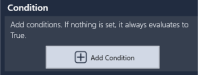
Tap [+Add Condition].
Tap the dropdown menu and select the type of condition you want to set.
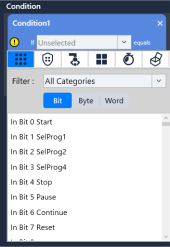
- When setting with
 (input number)
This determines whether the input signal is in the specified state.- By bit:
“If (Input bits) equals (state: ON/OFF)” - By byte or word:
“If (Input byte or word & mask) equals (state: numerical value)”
- By bit:
KEY POINTS
Available to select category of Input and show less as you like by using the filter.
For the details of I/O types to show or Input bits, refer to the following.
If you are using an RC700-E/RC800-A/RC800L controller, you can set the input status of safety inputs/outputs as the target of conditional branching.When setting with
 (hand)
Judged by whether the hand is gripping a workpiece or not. Input like following below.
“If (Hand (Gripped / Released)) equals (True / False)”When setting with
 (pallet)
Perform a specific action at the designated position (first / last) on the palette. Input like following below.
"If (Pallet XX) is (position: first / last)"When setting with
 (time out)
Depending on whether the "Grip," "Release," or "Wait" command has timed out, specific actions will be taken. Input like following below.
"If (Grip/Wait timeout) is (True/False)"
[Grip time out]
If you have set a timeout for the "Grip" motion in the hand settings, you can set the timeout as a condition here.
[Wait time out]
You can set a condition based on whether the last executed "Wait" command timed out.
WaitWhen setting with
 (RC+)
(RC+)
This option is only available if you have configured the settings to import RC+ projects.
The conditions are selected in the following format:
"If (variable label/variable name) is (xx)"
Variable
From the list of global variables defined in the imported RC+ project, select the variable to be used for the conditional check.
The format of the condition will vary depending on the variable you select.
Variable type Options/Input Restrictions Operators used when setting conditions Boolean 2 byte, True/False True/False = Byte 2 byte integer, -128 to +127 Only integers can be entered = > < >= <= <> Integer 2 byte integer, -32768 to 32767 Short 2 byte integer, -32768 to 32767 Int32 4 byte integer, -2147483648 to 2147483647 Int64 8 byte integer, -9223372036854775808 to 9223372036854775807 Long 4 byte integer, -2147483648 to 2147483647 Ubyte Unsigned 2-byte integer, 0 to 255 0 or a greater integer can be entered = > < >= <= <> Ushort Unsigned 2-byte integer, 0 to 65535 UInt32 Unsigned 4-byte integer, 0 to 4294967295 UInt64 Unsigned 8-byte integer, 0 to 18446744073709551615 Real 4-byte real number, significant digits: 6 Only numerical values can be entered = > < >= <= <> Double 8-byte real number, significant digits: 14 String ASCII characters only, 255 characters max. = <> Drag and drop a command that you want to add to both [Then] and [Else].
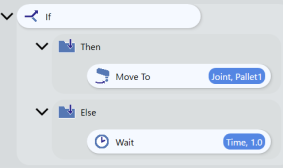
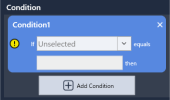
If you want to add more conditions, tap the [+] button to add conditions.
Available to add operators between conditions when there are more than two conditions.
And: Both condition A and condition B is established.
Or: Whether condition A or condition B is established.
KEY POINTS
When some conditions are set, the judgment is made in order from the condition set first. For example, when condition 1, 2 and 3 are set, the condition 1 and 2 is judged first. After that, the result of condition 1, 2 and condition 3 is judged.