Modification and Installation of Communication Cables
Follow the steps described below to modify communication cables and connect them to the connector.
CAUTION
Be careful not to injure your hands or fingers on any sharp blades or tools used to modify the cable. Use appropriate blades and/or other tools to modify the cable. Using inappropriate blades and/or other tools may result in bodily injury and/or equipment damage.
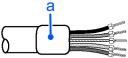
Strip approx. 30 mm of the cable covering (a) with extra care so that you do not scratch on the braided shield underneath. Do not strip the cable covering more than necessary. Excess stripping may cause short-circuit and/or make the cable more sensitive to noise.
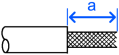
Carefully expand the meshes of the braided shield.
Under the braided shield, there is one exposed bare twisted shield wire (a) other than the signal wires and power wires that are wrapped with aluminum tape. (The shield wire is slightly harder than the mesh.)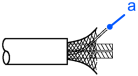
Cut off the expanded braided shield and remove the aluminum tape around the signal wires and power wires. Then, strip the insulation from the signal wires and power wires for a length sufficient to connect them to crimp terminals (a).
Twist each stripped signal wire and power wire.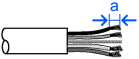
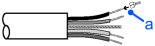
Set the crimping terminal (a) on the stripped part of the wire and crimp it with a crimp tool. The following crimping terminals are recommended products.
NICHIFU TC series
Model Number Specification Special Tool TMEV TC-0.5 For Thin Cable MH-32 TMEV TC-2-11 For Thick Cable (power wire) TMEV TC-1.25-11 For Thick Cable (signal wire) Phoenix Contact AI series
Model Number Specification Special Tool AI 0.5-8WH For Thin Cable (power wire) CRIMPFOX UD6 AI 0.25-8YE For Thin Cable (signal wire) AI 2.5-8BU For Thick Cable (signal wire) AI 1-8RD For Thick Cable (signal wire) Wrap or cover the cable with vinyl tape or heat-shrink tubing (a).
KEY POINTS
Loosen the screws securing the cables on the connector. If the screws are not loosened, the wires go into different openings on the rear of connector instead of the correct openings and the wires cannot be secured.
Ensure the correct connector orientation and insert the signal wires and shield wire to their respective holes on the connector.
As shown in the figure, insert the wires (black, blue, shield, white, and red) into the holes in the order named.
The following table shows the specified colors of the cables.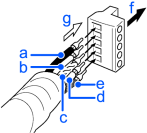
Symbol Color Details of Signal Wire Identity a Black Communications Power Supply (negative) V- b Blue Signal (Low) CAN L c - Shield S d White Signal (High) CAN H e Red Communications Power Supply (positive) V+ Symbol Description f Insert the connector in this direction g Insert wires in this direction Tighten each screw securing the wires on the connector.
Tighten the screw securing the wire at a correct tightening torque (0.25 to 0.3 N·m). To prevent thick cable from coming out due to cable tension, install the thick cable with enough length to allow for stretch.If you use a typical screwdriver whose point is narrow, you cannot deeply insert it into the hole on the connector. Use a small flat blade screwdriver that has the correct width and thickness.
Specific screwdrivers for DeviceNet connector screw are:
- OMRON: XW4Z-00C
- Phoenix Contact: SZF-1 0.6×3.5
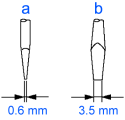
Symbol Description a Thickness b Width