Installing a Board
WARNING
Make sure that the power is turned OFF before installing/removing any boards or connecting/disconnecting any cables. Working with the power ON is extremely hazardous and may result in electric shock and/or malfunction of equipment.
Configure the board address jumper (JP1) on EtherNet/IP master board manufactured by molex.
You can install one Fieldbus master board to the PC with Epson RC+ 8.0 installed.
The board number should be "1".
Refer to the following table for JP1 configuration.Short Socket Port No. C0 C1 C2 1 0: Short 0: Short 0: Short Install the EtherNet/IP master board manufactured by molex to the PCI bus of the PC with Epson RC+ 8.0 installed. Installation methods of the EtherNet/IP master board manufactured by molex to the PCI bus and how to open the cover differ depending on the type of PC. Refer to the manuals of each PC on how to install the board to the PCI bus.
Connect the EtherNet/IP master board manufactured by molex with the EtherNet/IP network.
Start up the PC.
Open the [applicomIO Console] installation folder and start the [applicomIO Console] application.
Following is specified for [applicomIO Console] installation folder as default.
C:\Program Files(x86)\BradCommunications\applicomIO\4.2
The [applicomIOR console] dialog box appears. Add the EtherNet/IP master board manufactured by molex.
Click [Add Board].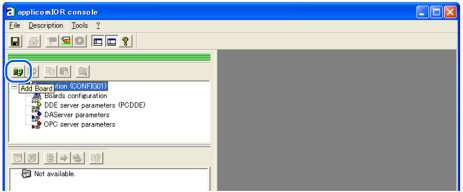
The [Add New Board] dialog box appears.
Confirm that "PCI/PCU-ETHIO" is displayed in [Board to Add] - [Board Type] and click [OK].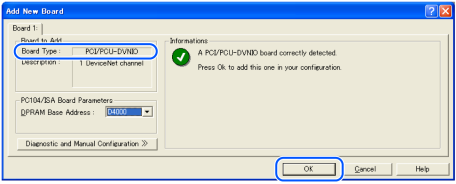
If the board cannot be detected, the following dialog box appears. Make sure that the board is correctly inserted.
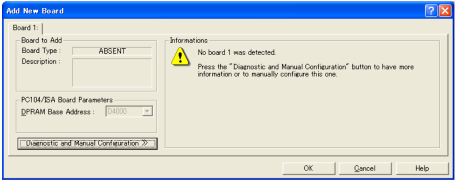
The [Channel Properties] dialog box appears.
Select [Protocol] - [EtherNet/IP] and click [OK].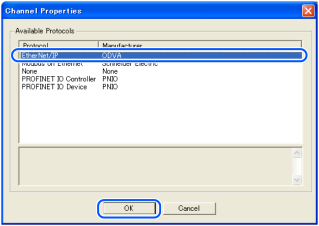
The following dialog box appears. Set the IP address for the EtherNet/IP master board manufactured by molex.
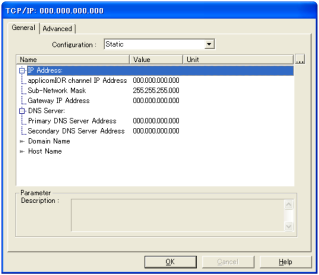
Select the IP address from [Configuration]. There are following three typws. (Do not select "Flash Memory")
- Static: assign as fixed IP address
- DHCP: obtain from the DHCP server
- BOOTP: obtain from the BOOTP server

If you select "Static (Fixed IP address)", enter the values in each item.
When you complete adding the EtherNet/IP master board manufactured by molex to the applicomIO Console application, reboot the PC.
Close the applicomIO Console application.
When the applicomIO Console application shuts down, the following dialog box appears. Click [Yes].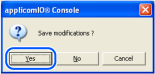
The following dialog box appears. Click [OK].
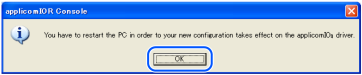
Reboot the Windows.
After the PC is rebooted, refer to the following section and continue the step.