Master Mode
Check that the EtherNet/IP master board manufactured by molex is connected to the EtherNet/IP network.
Start the [applicomIO Console] application.
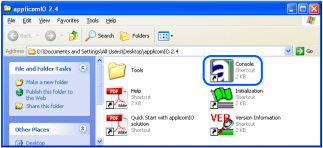
The [applicomIOR console] dialog box appears. Register the device information (EDS file) that is necessary for the network setup.

Select [Protocol].
Select the [Equipment Library] tab.
Click [Add].
The [EDS Management] dialog box appears. Register the EDS file that is supplied from the device manufacturer in the Robot system.
Click [Next].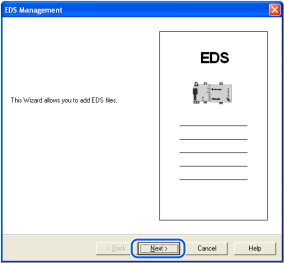
The dialog box shown below appears. Specify the folder in which the EDS file is stored.
Select [Add all the EDS from the Directory].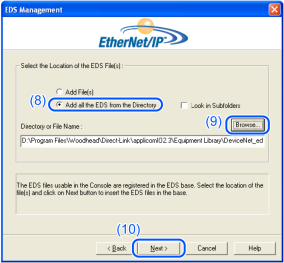
Click [Browse].
Click [Next].
The dialog box shown below appears. Confirm the retrieved device information.
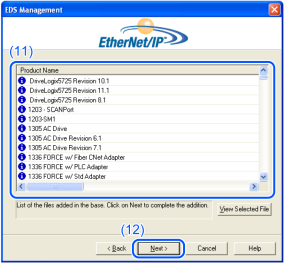
Click [Next].
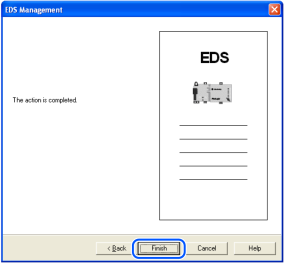
The dialog box shown below appears. Click [Finish] to complete the EDS file registration.
Select the [Network Detection] tab.
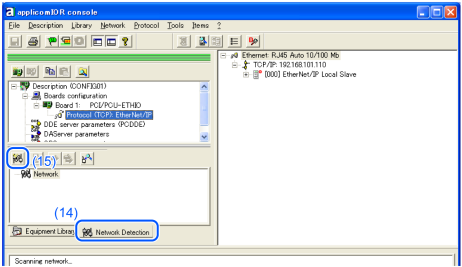
Click [Read Network Configuration].
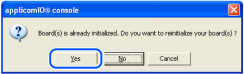
The following message appears. Click [Yes].
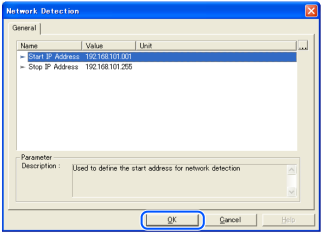
Specify the range of detection. If you do not change the range, click [OK].
The following dialog box appears. The following dialog box appears and read in the devices on the Fieldbus.
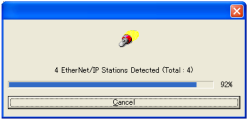
The list of detected devices is displayed in the [Network Detection] panel.

Select a device you want to scan.

Click [Insert in Configuration].
The following dialog box appears.
Uncheck the [Link Parameters] checkbox.
Assign a number in the range from 1 to 127 in [Number:].
This number is "Device ID". It is required when creating a SPEL+ program.Select [General] on the [Connections] tab.
Connections Parameters appear to communicate with the slave device.Displayed items are different depending on the slave device.
Displayed Connections Parameters are information that is set on the Fieldbus master board.
Make sure that the information matches with that of the slave device
KEY POINTS
Connections Parameters that are set for the Fieldbus master board and information of the slave device need to be matched.
Communication with the slave device is not performed if they do not match. Change the information of either Connections Parameters or Fieldbus master board.
Please consult with the slave device manufacturer if the information is unclear.
Double-click the items to change if necessary.
After changing items, click [OK] button. (The figure below is an example of edit screen of Output Size)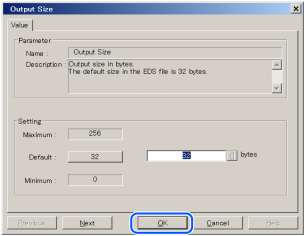
Click [OK] to complete the registration.
Check the communication status with each slave devices.
Click [Diagnostic].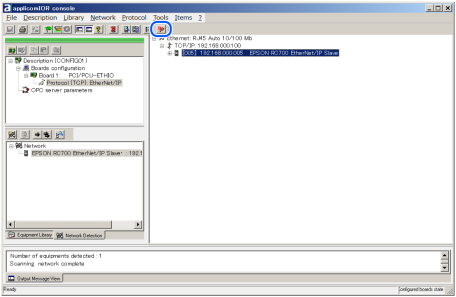
The [Diagnostic Board] dialog box is displayed.
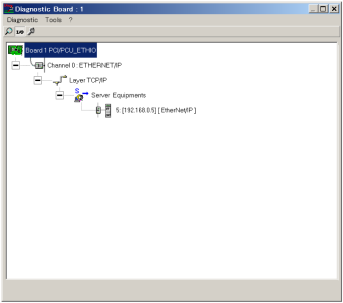
If it cannot communicate with the slave device, the following dialog box appears.
Connections Parameters that are set for the Fieldbus master board and information of the slave device may not be matched.
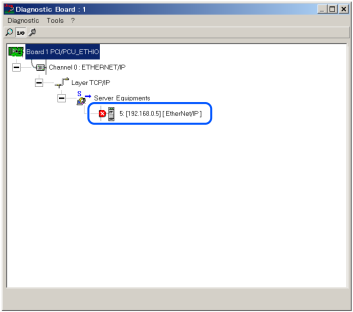
Connections Parameters for the Fieldbus master board can be checked by the following procedure.
First, select the slave device which is registered to the Fieldbus master board.
Then, click the left mouse button and select [Properties].
The property information of selected slave device is displayed.
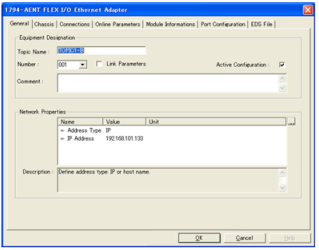
Select [General] on the [Connections] tab.
Connections Parameters appear to communicate with the slave device.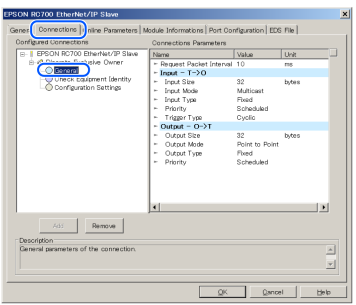
Select [File] - [Download in Flash] from the applicomIOR console menu. Register the configuration to the Fieldbus master board.

KEY POINTS
Make sure that the flash memory of the Fieldbus master board stores the configuration; otherwise, the Fieldbus master board cannot correctly function.
Also, you cannot control it from Epson RC+ 8.0.
If you changed the configuration, select [File] - [Download in Flash] from the applicomIOR console menu and register the configuration to the Fieldbus master board.
After a few seconds, the display of "Configured boards state" on the status bar turns to green.
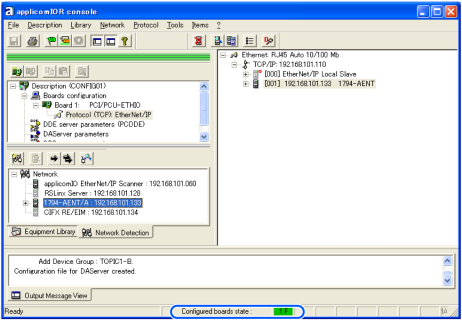
Now, the Fieldbus master board is ready to operate in the master mode.
Close the "applicomIO Console" application.
Refer to the following section and continue the step.
KEY POINTS
If there is a problem such as the fieldbus master board is not recognized by Windows, refer to the following section.