System
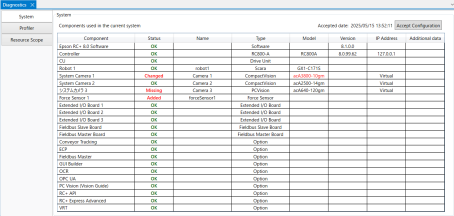
The System tab displays a list of all components in the system that are being used in the current project. Displays the status of added, changed, and missing components in the system compared to the last time the project was opened. This allows the user to determine if there is a problem with the system components.
For example, if a force sensor used in an application is not detected by the controller, system diagnostics indicates that the force sensor is missing. This lets the user know what to troubleshoot.
The relevant information (name, type, model, version, IP address, additional information) is displayed for each component. When a project is created or opened for the first time, system diagnostics are available and the current system configuration data is saved.
After the project is opened for the first time, the current component list is compared to the previously saved configuration. The Status column indicates the evaluation of the comparison, as shown in the table below.
| Status | Description |
|---|---|
| OK | The component was found and has not been changed. |
| Added | The component was added. |
| Changed | The component has been changed. Changed items are displayed in red. |
| Missing | The component is not detected. |
If the status is not OK, the [Save Current Configuration] button is enabled. If any components required to run the application are missing, you must correct the problem and update the system components list.
Follow the steps below to update the system components list.
- Restart RC+.
- Open the project.
- Open diagnostics.
- Display the system components list.
- If one component or more has a status other than OK, review the system configuration and, if it is satisfactory, click the [Save Current Configuration] button. All statuses become OK and the configuration is saved.
| Item | Description |
|---|---|
| Save Current Configuration | Click this button to save the current configuration. The missing components are removed and the status of all other components is set to OK. |