Displaying Data
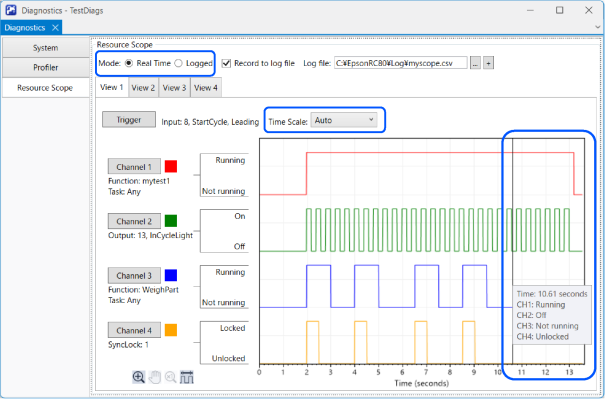
Select [Real time] mode or [Logged] mode.
The status of each channel is displayed on the graph.
You can change the [Time Scale] at any time.
Use the time bar and tool tips on the graph to view channel data at a specific time. The time bars are displayed on the graph when you hover the mouse cursor over data on the graph.
KEY POINTS
If the [Time Scale] is set to [Auto], the time bars are not displayed on the graph when the task is running.
Click the  button to enter graph zoom mode. To expand the time period, move the mouse to the start time, hold down the left mouse button, and drag to the end time. The selective time period is highlighted in semi-transparent red. Release the mouse button to display the expanded data.
When in the zoom mode, click the  button at any time to revert to 1x zoom.
If there is too much data to display on the graph, click the  button to enter pan mode. When pan mode is active, move the mouse over the graph and hold down the left button while dragging the data left or right.