Profiler
The profiler profiles the run times of the selected SPEL functions in the current project. This allows users to evaluate the performance of applications and find code execution bottlenecks.
For example, if you want to shorten cycle times, you can find functions that run for an unexpectedly long time.
The following statistics are collected for each profiled function in the current project.
- Number of executions
- Percentage of total program execution time to total execution time
- Average execution time
- Minimum execution time
- Maximum execution time
Compare and record up to four profiles. The data is stored in a log file and can be viewed later.
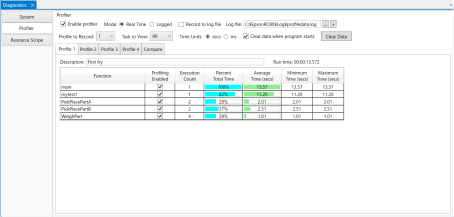
| Item | Description |
|---|---|
| Enable profiler | Select this check box to enable profiling of your project code. |
| Mode | Select whether to view real-time or logged data. |
| Record to log file | Select this check box to record the data in a log file. |
| Log file | Specify the log file to record the data to. |
 | Specify the log file and open a new window to display only the logged data. |
| Profile to record | Select the profile to record. |
| Task to View | Select whether to display function execution data by task or for all tasks. |
| Time units | Select whether to display times in seconds or milliseconds. |
| Clear data when program starts | Select this check box to clear all recorded profile data each time the program starts. Deselect this check box to accumulate data each time the program runs. |
| Clear Data | Click this button to clear the recorded profile data. It is useful when [Clear data when program starts] is not selected. This button is disabled in [Log View] mode. |
| Profile tabs | Select the profile you want to view. Each profile tab displays profile statistics, a description, and the program execution time. |
| Compare tab | The Compare tab shows the average execution time per function for each profile. |
Each profile tab shows the following items.
| Item | Description |
|---|---|
| Function | Displays the names of the functions in the current project. |
| Profiling Enabled | Enables function profiling. |
| Execution Count | Displays the number of times the functions corresponding to [Task to View] are executed. |
| Percent Total Time | Displays the function execution time as a percentage of the program execution time. |
| Average time | Displays the average execution time for the function. This is the total execution time of the function divided by the number of executions. The background shows a green bar that indicates the percentage of the average time for that function with respect to the longest average time among all functions. |
| Minimum time | Displays the minimum execution time for the function. |
| Maximum time | Displays the maximum execution time for the function. |