Sequence - Adjust Mode
In [Adjust] mode, you can efficiently review the sequences you have created. You can link the created sequences together and check their operation. You can also check the execution time and execution order of the sequences.
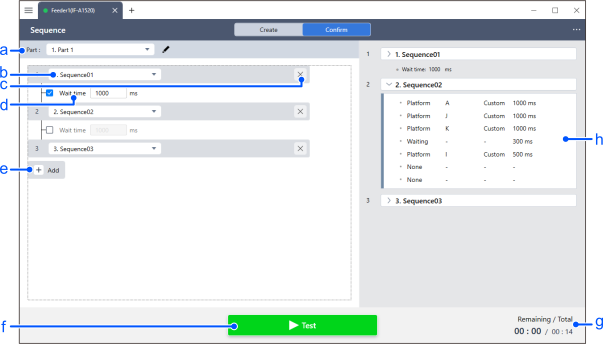
| Item | Description | |
|---|---|---|
| a | Part ID Selection | Select the part ID on which to execute the sequence. Since the sequence information and part ID are not associated, the vibration will be executed using the part ID selected here. |
| b | Selecting the Sequence | Select a sequence number from 01 to 26 to check the operation. Only created sequence numbers will be displayed as options. |
| c | Delete | Deletes the selected sequence. |
| d | Wait time | Turn this on to set a wait time. The program will wait for the time entered in the text box before proceeding. |
| e | Add | Add a sequence. When you first enter the sequence confirmation mode, only this button will be displayed. Press this button to add a sequence. |
| f | Test | The sequence set above will be executed. After it starts, the button will switch to a stop button. |
| g | Elapsed Time | It displays the elapsed time since the sequence started. |
| h | Sequence operation status | The left side of the screen displays the status of the sequence you've set, including the actions currently running, completed actions, and the next action to be executed. |