Importing CRL Files
When importing with one Controller:
Select a Controller to configure from the check box of Controller Information List.
Select Home display Menu - [Certificate] - [CRL].
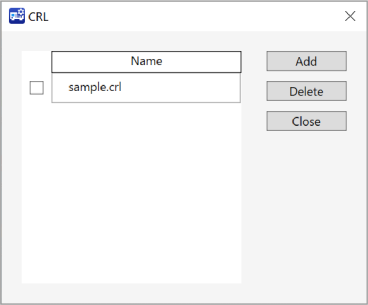
[CRL] dialog will be displayed. Click [Add] button.
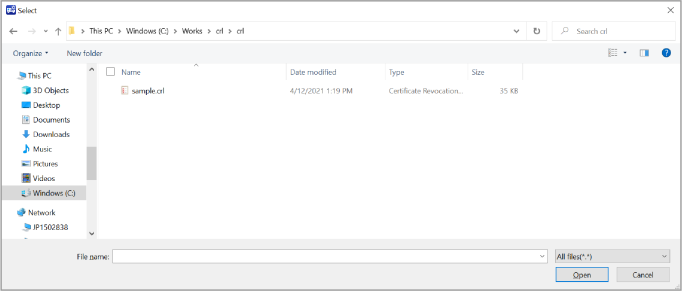
A dialog to select a file will be displayed. Click [Open] button.
KEY POINTS
Do not use space or full-width character for the file name.
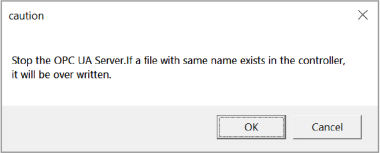
A dialog will be displayed says the Server will stop and overwritten to import.
Click [OK] button.
An error dialog will be displayed, and import will not be performed when:
- There are no files, or the file is invalid.
- The number of files exceeds the upper limit (up to 50 files).
When importing with multiple Controllers:
Select multiple Controllers to configure from the check box of Controller Information List.
Select Home display Menu - [Certificate] - [CRL].
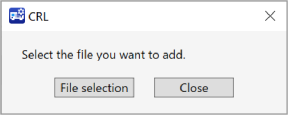
[CRL] dialog will be displayed. Click [File selection] button.
A dialog to select a file will be displayed. Click [Open] button.
KEY POINTS
Do not use space or full-width character for the file name.
A dialog will be displayed says the Server will stop and overwritten to import.
Click [OK] button.
An error dialog will be displayed, and import will not be performed when:
- There are no files, or the file is invalid.
- The number of files exceeds the upper limit (up to 50 files)