User Specified Certificate
CAUTION
When creating a Certificate or private key with a tool other than this application, for the certificate creation library such as OpenSSL used by the tool, use the version of OpenSSL installed on the PC using this application or one compatible with it. Operation is not guaranteed when using different version of OpenSSL.
This function is enabled only when you have selected a RC700/90/T/VT series virtual controller or controller with firmware version 7.5.xx or earlier.
Select a Controller to configure from the check box of Controller Information List.
Select Home display Menu - [Certificate] - [Create/Save] - [User specified].
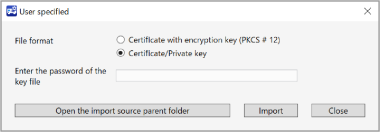
[User specified] dialog will be displayed.
[User specified] can not be selected when:
- Selecting multiple Controllers.
Set each item at [User specified] dialog.
When [Certificate with encryption key] is selected:
You will need to enter the password you set when you created the Certificate with encryption key.
The Certificate files you want to register need to be saved only one in following folder for each Controller.
C:\EpsonRC80\OPCUA\[Controller serial No.]\Cert\UserSpecifiedfolderKEY POINTS
Name the Certificate file with half-width alphanumeric characters and underscores. Enter the extension with pfx.
When [Certificate/Private key] is selected:
The Certificate files you want to register need to be saved only one in following folder for each Controller.
C:\EpsonRC80\OPCUA\[Controller serial No.]\Cert\UserSpecifiedfolderKEY POINTS
Name the Certificate file with half-width alphanumeric characters and underscores. Enter the extension with der.
The files of private key you want to register need to be saved only one in following folder for each Controller just.
C:\EpsonRC80\OPCUA\[Controller serial No.]\Cert\UserSpecifiedfolderKEY POINTS
Name the Certificate file with half-width alphanumeric characters and underscores. Enter the extension with key.
Item Description Open the import source parent folder Displays designated folder of export destination.
Click [Open the import source parent folder] button to open designated folder of the import.
Import the Certificate with encrypt or Certificate and private key from PC to the Controller depending on the type of the file you selected in (3).
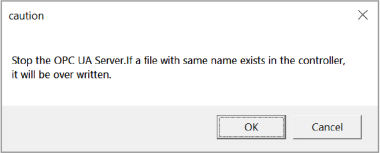
Click [Import] button, then a dialog will be displayed says the server will be stopped and overwritten for the import process.
Click [OK] button to continue the process. User specified Certificate will be imported.
Click [Cancel] button to stop importing the Use specified Certificate.
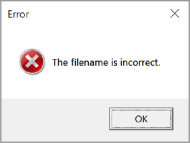
An error dialog will be displayed before importing when:
File name to import is incorrect. For about correct file name, refer to step (3).
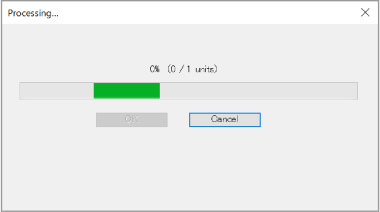
During the process of importing User specified Certificate, following dialog will be displayed.
Click [Cancel] button then a dialog will be displayed says import will be canceled. Click [OK] button to stop importing the User specified Certificate.
Processing that has already been completed cannot be undone.