CA Signed Certificate
Creating CSR
CAUTION
If you click the [Create / Save] button when creating a CSR, the CA signed certificate you are currently using will be invalidated.
Select a Controller to configure from the check box of Controller Information List.
Select Home display Menu - [Certificate] - [Create/Save] - [CA signed].
[CA signed] will be displayed.

Click [Create] button.
[CSR] dialog will be displayed. CSR will be needed when issuing the CA signed Certificate.
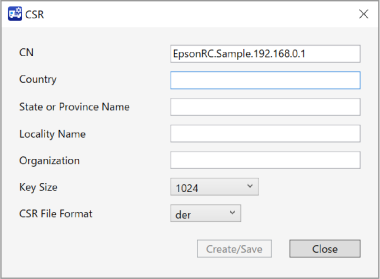
Set each item at dialog of creating CSR.
Created CSR files will be saved in following folder.
C:\EpsonRC80\OPCUA\[Controller serial No.]\Cert\CSRfolderKEY POINTS
The extension is the one that setup in CSR File Format of creating CSR dialog (.der or .pem).
Items Descriptions Examples CN Enter a common name.
[EpsonRC.Serial No. of Controller.IP Address] is entered at first. (It is same as Application Name of OPC UA server. If it changed, a warning when connecting from OPC UA client may displayed because name is not matched.)
EpsonRC.SN0000123.192.168.010.001 Country Enter a country code referring ISO 3166-1 alpha-2.
Specifically, use two single-byte uppercase alphabetical characters.
JP State or Province Name Enter your State or Province Name.
Half-width alphabetic characters can be entered.Nagano Locality Name Enter your Locality Name.
Half-width alphabetic characters can be entered.(city)
Azumino
Organization Enter your Organization Name.
Half-width alphabetic characters and the following symbols can be entered.
"_","."
(company)
Epson
Key Size Select a private key size to create. Length of the key you can select depends on the communication encrypt system selected at [Basic Setting].
- None: 2048(bit)
- Basic256: 1024/2048(bit)
- Basic128Rsa15: 1024/2048(bit)
- Basic256Sha256: 2048/4096(bit)
- Aes128Sha256RsaOaep: 2048/4096(bit)
- Aes256Sha256RsaPss: 2048/4096(bit)
- CSR File Format Select an encoding way of the private key file when generating the private key file.
- der
- pem
- Click [Create/Save] button.
Start creating CSR.
Clicking [Create/Save] button makes the CA signed certificate that you are currently using will be invalidated. Send the created CSR to CA and issue the CA signed certificate.
Before start working on the step (7), save only one in each of the following folders corresponding to the target Controller.
KEY POINTS
Name the Certificate file with half-width alphanumeric characters and underscores. Enter the extension with der.
C:\EpsonRC80\OPCUA\[Controller serial No.]\CASignedfolderKEY POINTS
Precautions when selecting multiple Controllers
- CN will be setup automatically by OPC UA Configurator.
- Entered values except CN are applied to CSR of all Controllers.
Importing CA Signed Certificate
Select a Controller to configure from the check box of Controller Information List.
Start importing the CA signed certificate from the PC to the Controller.
Click [Import] button.
Click [Import] button then a dialog will be displayed says the server stops when saving CA signed certificate to the Controller and the Certificate will be overwritten.
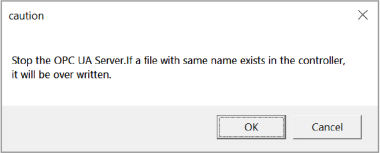
Click [OK] button, import will be done.
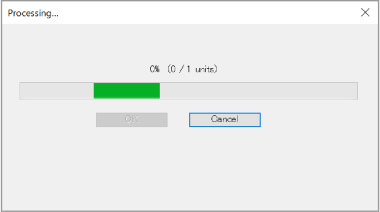
An error message will be displayed progress dialog and import will be canceled when:
- The certificate imported from PC to Controller and CSR that saved in Controller do not match.
After you have completed importing CA signed certificate, the following dialog will be displayed.
Click [OK] button.
