Creating PG Robots in Epson RC+
The PG Motion System can control up to four axes per PG board, so there can be from one to four PG robots per board, depending on the number of axes per robot.
KEY POINTS
If you are also using PG boards for Conveyor Tracking in the same system, those boards are only used for conveyor tracking encoders. PG boards used for the PG Motion System are used separately, but are enumerated in the system along with the PG boards used for conveyor tracking. If you add a PG board to the system for use with the motion system and there is already one or more boards used for conveyor tracking, then the PG board # will be the next board after the conveyor tracking PG boards. For example, if you add 1 PG board for conveyor tracking, and then add a board for PG motion, that board will be #2.
To create a PG robot in Epson RC+, follow these steps:
Turn on the Controller and launch Epson RC+.
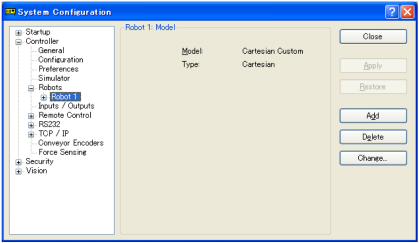
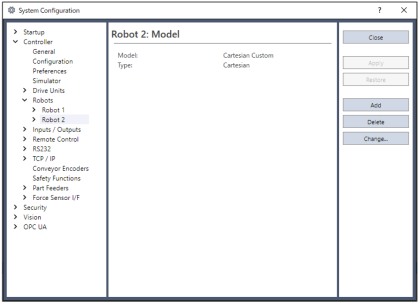
Select [Setup]-[System Configuration]-[Controller]-[Robots].

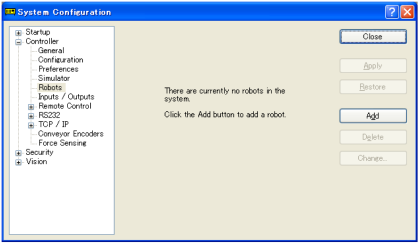

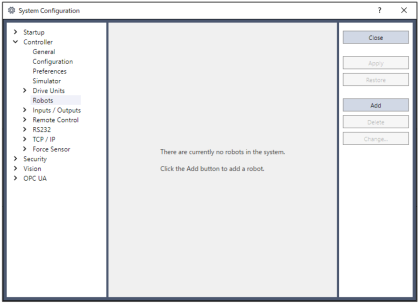
Click the [Add] button. The [Add New Robot] dialog will be displayed.
Enter the name of the robot and serial number. Select “PG” motion system.
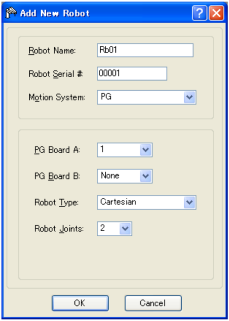
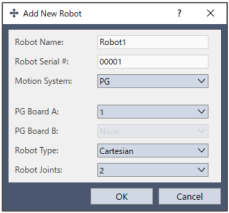
Select PG board A, Robot Type, and the number of joints used on the robot.
For the Cartesian coordinate robot, select “Cartesian”.
For the Joint type robot, select “Joint”.
In case of the Joint type robot with more than 5 joints, select also “PG board B”.
Click the [OK] and reboot the controller.
After the controller is rebooted, a PG robot is added to Epson RC+.