Curve Statement
Creates the motion trajectory file for continuous spline path motion using the CVMove instruction. The motion trajectory is a curve that passes through all the given points.
Syntax
Curve fileName, closure, mode, numAxes, [interpolationMethod], pointList
Parameters
fileName
Specify the name of the file in which point data will be saved as a string. The specified fileName will have the extension .CVT appended to the end so no extension is to be specified by the user. When the Curve instruction is executed, file will be created. You cannot specify a file path and fileName doesn’t have any effect from ChDisk. See ChDisk for the details.
closure
Specify whether or not the defined Curve is Closed or left Open at the end of the curved motion. This parameter must be set to one of two following possible letters.
- C - Closed Curve
- O - Open Curve
When specifying the open curve, the Curve instruction creates the data to stop the arm at the last point of the specified point series. When specifying the closed curve, the Curve instruction creates the data required to continue motion through the final specified point and then stopping motion after returning the arm to the starting point of the specified point series for the Curve instruction.
If you specify closed curve, the tangential directions match at the start and end points.
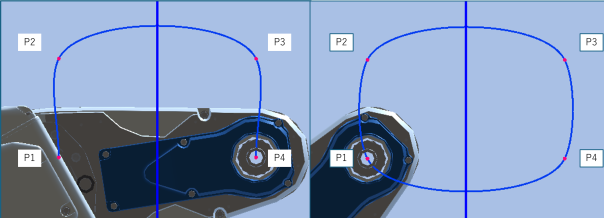
The figure below compares the closed curve and open curve when P1 to P4 are input. In the case of a closed section, movement is up to P1. There is a smooth transition between the start and end of the movement.
mode
Use bits 0 to 3 to specify whether to perform tangential correction (whether to automatically interpolate the tool orientation in the curve tangential direction). The ECP number can be specified using bits 4 to 7.
| Mode Setting | Tangential Correction | ECP Number | |
|---|---|---|---|
| Hexadecimal | Decimal | ||
| &H00 | 0 | No | 0 |
| &H10 | 16 | 1 | |
| &H20 | 32 | 2 | |
| … | … | … | |
| &HA0 | 160 | 10 | |
| &HB0 | 176 | 11 | |
| &HC0 | 192 | 12 | |
| &HD0 | 208 | 13 | |
| &HE0 | 224 | 14 | |
| &HF0 | 240 | 15 | |
| &H02 | 2 | Yes | 0 |
| &H12 | 18 | 1 | |
| &H22 | 34 | 2 | |
| … | … | … | |
| &HA2 | 162 | 10 | |
| &HB2 | 178 | 11 | |
| &HC2 | 194 | 12 | |
| &HD2 | 210 | 13 | |
| &HE2 | 226 | 14 | |
| &HF2 | 242 | 15 | |
When tangential correction is specified, the arm uses only the orientation of the start point in the point list. The UVW coordinate values of the intermediate points are ignored. If tangential correction is enabled, the tool orientation is maintained to always remain constant when viewed from the tangential direction to the curve. It is specified when installing tools such as cutters that require continuous tangential alignment.
If you select closed curve and tangential correction at the same time for point data that traces the outer periphery of a workpiece, the orientation at the final point becomes the same as the initial orientation but the J6Flag or ball screw rotation are different.
The diagram below is an example for SCARA robots. If you specify P1 to P8 as a closed curve without tangential correction, it passes through P1 to P8. On the other hand, if you select a closed curve and tangential correction at the same time, the tool orientation is corrected according to the tangential direction of the curve. This causes the tool to pass through P1, P2' to P8'. The orientations specified in P2 to P8 are ignored. As it is a closed curve, the tool moves to the start position of the curve but the ball screw is rotated one turn with respect to the U axis before and after the CVMove operation.
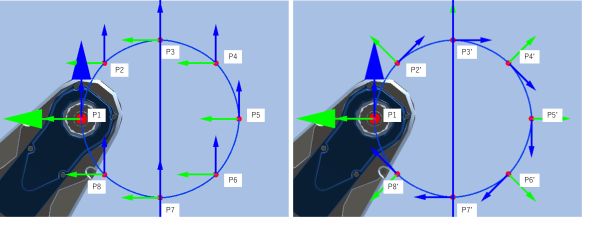
Left: No tangential correction/Right: With tangential correction
When using ECP, specify the ECP number in bits 4 to 7.
ECP is effective when you want to grip a workpiece with the robot and control the trajectory along the edge of the workpiece using a tool fixed around the robot. For a basic explanation of the External Control Point (ECP) coordinate system (optional), see below.
"Epson RC+ User’s Guide - SPEL+ Language - Coordinate System - External Control Point (ECP) Coordinate System (Optional)"
To generate a curve considering the additional axis position included in the point data, specify the eighth bit as 1. For example, when using no orientation offset or ECP and generating a curve considering the additional axis position, specify &H100.
When generating a curve for the additional axis, join the continuous point data of S axis and T axis separately from the robot coordinate system.
However if the additional axis is consisted of the PG axis, it doesn’t generate a curve with the continuous point but creates the data to move to the final point.
The mode specification bits and their corresponding functions are described below.
| Bit | 8 | 7 | 6 | 5 | 4 | 3 | 2 | 1 | 0 |
|---|---|---|---|---|---|---|---|---|---|
| Data | Additional axis | ECP Number | Tangential Correction | ||||||
numAxes
Specify the number of coordinate axes to be controlled during curve operation as an integer of 2, 3, 4, or 6.
- 2 - Generate a curve in the XY plane with no Z Axis movement or U Axis rotation. (except for 6-Axis robots (including N series))
- 3 - Generate a curve in the XYZ space with no U axis rotation. (except for 6-Axis robots (including N series))
- 4 - Generate a curve in the XYZ space with U-Axis rotation. (except for 6-Axis robots (including N series))
- 6 - Generate a curve in the XYZ space with U, V, and W axes rotation (6-Axis robots (including N series) only).
The axes not selected to be controlled during the Curve motion maintain their previous encoder pulse positions and do not move during Curve motion. For example, if you create a curve file for a SCARA robot by specifying 2 for the number of coordinate axes, the Z axis does not move during CVMove, regardless of the Z coordinate of the specified points.
interpolationMethod
Specifies the interpolation method for the curve. If IM_CMPTBL is specified, the interpolation method is compatible with firmware versions earlier than Ver. 8.1.1. A new interpolation method is used if IM_NORMAL is specified. This is optional. If omitted, IM_CMPTBL is used.
The new interpolation method has the following advantages.
- Reduced time to create the curve file.
- The motion speed adjustment function suppresses errors during movements with large changes in orientation.
- Easier to create straight line sections
- Smoother orientation interpolation
Normally, specify IM_NORMAL. For details about the differences between interpolation methods, see the Description.
pointList { point expression| P(start:finish) } [, output command ] ...
This parameter is actually a series of Point Numbers and optional output statements either separated by commas or an ascended range of points separated by a colon.
All point data must be defined in the same coordinate system. An error occurs if some points are defined in a different local coordinate system. In addition, for a vertical 6-axis robot, the hand orientation, elbow orientation, and wrist orientation in the point data must all match. In addition, for a SCARA robot, the hand orientations must all match.
If you want to turn on or off an I/O output port during an operation in sync with the motion, you can write output commands separated by commas (,).
Normally the series of points are separated by commas as shown below.
Curve "MyFile", O, 0, 4, P1, P2, P3, P4
Sometimes the user defines a series of points as an ascending range of points as shown below.
Curve "MyFile", O, 0, 4, P(1:4)
In the case shown above the user defined a curve using points P1, P2, P3, and P4. Output command is optional and is used to control output operation during curve motion. The command can be On or Off for digital outputs or memory outputs. Entering an output command following any point number in the point series causes execution of the output command when the arm reaches the point just before the output command. A maximum of 16 output commands may be included in one Curve statement. In the example below, the "On 2" command is executed just as the arm reaches the point P2, then the arm continues to all points between and including P3 and P10.
Curve "MyFile", C, 0, 4, P1, P2, ON 2, P(3:10)
Description
Curve creates data that moves the manipulator arm along the curve defined by the point series pointList and stores the data in a file on the controller. The CVMove instruction uses the data in the file created by Curve to move the manipulator in a continuous path type fashion.
Curve instruction calculates independent X, Y, Z, U, V, W coordinate values for each point using a cubic spline function to create the trajectory. Therefore, if points are far apart from each other or the orientation of the robot is changed suddenly from point to point, the desired trajectory may not to be realized.
Precisely specify points in sections where you want to emphasize the trajectory and sections where the orientation changes suddenly.
It is not necessary to specify speeds or accelerations prior to executing the Curve instruction. Arm speed and acceleration parameters can be changed any time prior to executing CVMove by using the SpeedS or AccelS instructions.
If the point data is specified in a local coordinate system, the curve file is created based on the local coordinate system. If the local coordinate system is changed with the Local instruction after executing the Curve instruction, the CVMove instruction is offset to match the changed local coordinate system.
If the ECP mode is specified, the curve file is created based on the ECP coordinates. If the ECP coordinates are changed with the ECPSet instruction after executing the Curve instruction, the CVMove instruction is offset to match the changed ECP coordinates.
Firmware version 8.1.1 and later adds a curved line interpolation method. Normally, specify IM_NORMAL as the interpolation method.
When the interpolation method is IM_NORMAL and four adjacent points are arranged on a straight line, the middle section always becomes a straight line. Also, if a point is changed in the point data, the route between the two points before and after the changed point changes.
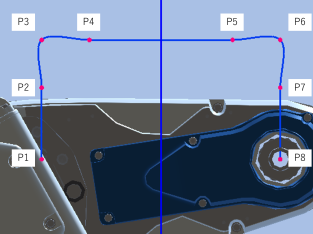
The diagram below shows the curve when P1 to P8 are specified in the curve file. As P3, P4, P5, and P6 are arranged on a straight line, the line between P4 and P5 is always a straight line.
If P5 is changed, the route for sections P3-P4, P4-P5, P5-P6, and P6-P7 change.
In addition, the motion speed adjustment function is enabled in firmware version 8.1.1 and later. Therefore, in sections where the orientation changes rapidly, the TCP speed is reduced to prevent acceleration errors as much as possible. This adjustment function is only enabled when the IM_NORMAL interpolation method is specified.
Notes
Open Curve Min and Max Number of Points Allowed
Open Curves may be specified by using from 3 to 1000 points.
Closed Curve Min and Max Number of Points Allowed
For an RC800 series controller, a closed curve can be specified using from 3 to 1000 points.
The Processing Time Gets Longer If the Number of Point Is Large
When the firmware version is earlier than Ver. 8.1.1 or IM_CMPTBL is specified as the interpolation method with Ver. 8.1.1 and later, executing the Curve command with the maximum number of points takes several seconds for an open curve or several tens of seconds for a closed curve.
If the processing time is an issue, select IM_NORMAL as the interpolation method.
Compatibility of file
Files created with firmware Ver.7.5.1 or later are not compatible with earlier versions of the firmware. However, files created with firmware earlier than Ver.7.5.1 can be used by firmware Ver.7.5.1 or later.
Files created with firmware Ver.8.1.1 or later are not compatible with earlier versions of the firmware. Also, files created with firmware earlier than Ver. 8.1.1 can be used by firmware Ver. 8.1.1 or later.
Potential Error
Attempt to Move Arm Outside Work Envelope
The Curve instruction cannot check the movement range for the defined curve path. This means that a user defined path may cause the robot arm to move outside the normal work envelope. In this case an “out of range” error will occur when a motion instruction is run.
When point interval is not even
When point interval is not even, the acceleration of the generated curve may become abnormally high. In such cases, an abnormal acceleration error may occur.
If an abnormal acceleration error occurs while executing CVMove, change the interpolation method to IM_NORMAL.
See Also
AccelS Function, Arc, Arc3 Statements, CVMove Statement, ECP Statement, Move Statement, SpeedS Statement
Curve Statement Example 1
The following program is an example using a SCARA robot. Create a curve file named mycurve.CVT.
The robot traces a curve passing through P1 to P7. During operation, the output port turns on when passing P2.
Set up curve
> curve "mycurve", O, 0, 4, IM_NORMAL, P1, P2, On 2, P(3:7)
Arm movement to P1 with the Jump instruction
> jump P1
Move the arm according to the curve definition called mycurve
> cvmove "mycurve"
Curve Statement Example 2: Creating a straight line section
When using curve motion, you may want to connect straight line and curved sections without any gaps. By arranging four points on a straight line, the two middle points will be a perfectly straight line but the end sections will deviate from a straight line. In this case, the displacement can be minimized by shortening the end sections.
The programs below can be tried out using the GX8-C Sample virtual controller.
(1) When the corner section is long As P3, P4, P5, and P6 are arranged on a straight line, the line between P4 and P5 is a straight line.
Function Test2_1
	P1 = XY(100, 300, -50, 0)
	P2 = XY(100, 360, -50, 0)
	P3 = XY(100, 400, -50, 0)
	P4 = XY(60, 400, -50, 0)
	P5 = XY(-60, 400, -50, 0)
	P6 = XY(-100, 400, -50, 0)
	P7 = XY(-100, 360, -50, 0)
	P8 = XY(-100, 300, -50, 0)
	Motor On
	Power High
	Curve "Test2_1", O, 0, 4, IM_NORMAL, P(1:8)
	Go P1 ' moves to AglToPls(0, 0, 0, 0, 0, 90) joint position
	CVMove "Test2_1"
Fend
(2) When the corner section is short By using P12, P14, P15, and P17 instead of P2, P4, P5, and P7 in (1), you can make the straight line section P14-P15 longer.
Function Test2_2
	P1 = XY(100, 300, -50, 0)
	P12 = XY(100, 395, -50, 0)
	P3 = XY(100, 400, -50, 0)
	P14 = XY(95, 400, -50, 0)
	P15 = XY(-95, 400, -50, 0)
	P6 = XY(-100, 400, -50, 0)
	P17 = XY(-100, 395, -50, 0)
	P8 = XY(-100, 300, -50, 0)
	Motor On
	Power High
	Curve "Test2_2", O, 0, 4, IM_NORMAL, P1, P12, P3, P14, P15, P6, P17, P8
	Go P1 ' moves to AglToPls(0, 0, 0, 0, 0, 90) joint position
	CVMove "Test2_2"
Fend
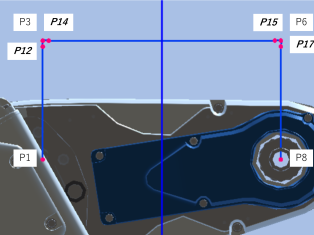
Curve Statement Example 3: Enabling/disabling tangential correction
This is a sample of a tangential correction function. As there is no tangential correction and no U coordinate specified in the Test3_1 curve file, the tool operates in a constant orientation. As tangential correction is enabled in the Test3_2 curve file, the tool operates at a constant angle with respect to the tangential direction to the curve. The orientations at the intermediate points are ignored.
The programs below can be tried out using the GX8-C Sample virtual controller.
(1) When the corner section is long As P3, P4, P5, and P6 are arranged on a straight line, the line between P4 and P5 is a straight line.
Function Test3
	Integer i
	' Register points on the circumference
	Local 1, XY(0, 350, -50, 0)
	For i = 0 To 8
		P(i) = XY(100 * Cos(2 * PI() * i / 8), 100 * Sin(2 * PI() * i / 8), 0, 0) /1
	Next
	Motor On
	Power High
	Curve "Test3_1", C, 0, 4, IM_NORMAL, P(0:8) ' No tangential correction
	Curve "Test3_2", C, 2, 4, IM_NORMAL, P(0:8) ' With tangential correction
	Go P0
	CVMove "Test3_1"
	Go P0
	CVMove "Test3_2"
Fend
Left: No tangential correction (Test3_1)/Right: With tangential correction (Test3_2)