Robot Object Properties
Robot
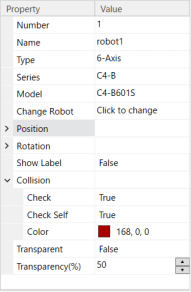
| Property | Value |
|---|---|
| Number | Robot number |
| Name | Robot name. You can specify any name for a robot. |
| Type | Robot type The robot type (SCARA and 6-Axis) is shown. This property is read-only. |
| Series | Robot series The robot series is shown. This property is read-only. |
| Model | Robot model name The robot model is shown. This property is read-only. |
| Change Robot | If you want to change the robot model, click on [Change Robot] button. When you click on this button, a dialog appears to change the robot. For details, see Changing the robot model described later in this chapter. [Change Robot] button. When you click on this button, a dialog appears to change the robot. For details, see Changing the robot model described later in this chapter. |
| Position | Robot position Specifies the base center in the simulator World coordinates. |
| Rotation | Robot angle |
| Show Label |
|
| Show Singularity Area | Shows/hides elbow singularity areas for N series robots.
|
| Collision Property | Value |
|---|---|
| Check | Enables / disables the collision detection for layout objects.
|
| Check Self | Enables / disables the collision detection for a robot itself.
|
| Color | Specify color to be used when collision of the arms is detected. Default: 168,0,0 |
| Property | Value |
|---|---|
| Transparent |
The front-back relation of the objects may be incorrect depending on the viewing angle. See details below. |
| Transparency | Specifies the transparency in the range of 1 to 90%. Transparency increases as the setting value becomes larger. |
Changing the robot model
When you want to change the displayed Robot click the [Change Robot] button. The [System Configuration]-[Controller]-[Robots]-[Robot**]-[Change]-[Change Robot] dialog will appear.
[Change Robot] button is not displayed, increase the property grid width and click the [Value] column of the grid once.
KEY POINTS
When you change the displayed robot model, all the settings for the robot (Local coordinates, Tool coordinates, etc.) will be initialized to the default values.
Collision Margin
Sets a collision detection margin for each robot arm collectively or separately.
When the robot type is changed from SCARA robot to 6-Axis robot or 6-Axis robot to SCARA robot, the Value will be reset. When changing to the same type robot, the value will be remained.
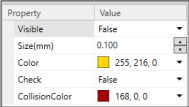
| Property | Value |
|---|---|
| Visible |
|
| Size | Margin size |
| Color | Margin color Default: 255,216,0 |
| Check | Enables / disables the collision detection.
|
| CollisionColor | Specifies a color to be displayed when detecting a collision. Default: 168,0,0 |
Local, Arm, ECP, Box, Pallet
If the local coordinate system of the corresponding number is not defined yet, the check box is grayed.
You can set up from the [Tools]-[Robot Manager] items.
- Local : Local settings
- Arm: Arm settings
- ECP : External control point settings
- Box : Entry detection area
- Pallet : Pallet settings
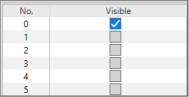
| Item | Description |
|---|---|
| Visible | Shows / Not show corresponding settings.
|
For Local 0 (Base), "Visible" is the default.
KEY POINTS
Arm can only be displayed by Epson RC+ Standard Edition and Premium Edition.
Tool
If the each setting of the corresponding number is not defined yet, the check box is grayed out. It can be set using [Tools] - [Robot Manager] - [Tools].

| Item | Description |
|---|---|
| Visible | Shows / Not show corresponding settings.
|
| Arm | Select the corresponding Arm number. You can choose Current Arm, Arm 0, or a predefined Arm.  The default is Arm 0. This setting is available only with Epson RC+ Standard Edition and Premium Edition. In the Basic Edition, the display always uses Arm 0 as the reference. |
Plane
If the each setting of the corresponding number is not defined yet, the check box is grayed. You can set up from [Tools]-[Robot Manager]-[Planes].
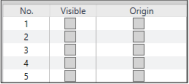
| Item | Description |
|---|---|
| Visible | Shows / Not show corresponding settings.
|
| Origin | Shows / Not show the origin of corresponding settings. When the checkmark is not placed in [Visible], the [Origin] checkbox is grayed.
|
XYLim
If the XYLim is not defined yet, the check box is grayed.
You can set up from [Tools]-[Robot Manager]-[XYZ Limits].
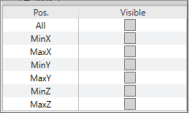
| Item | Description |
|---|---|
| Pos. | Shows the position of parameter that configures XYLim. |
| Visible | Shows / Not show the plane in corresponding position.
|
Points
Display the point display setting status in the point file. Switch to show/non-show all points.

| Item | Description |
|---|---|
| File Name | Show a point file name. |
| Visible | Shows / Not show all points
|
Point
If the point of the corresponding number is not defined yet, the check box is grayed.
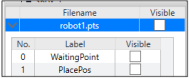
| Item | Description |
|---|---|
| Label | Shows a point label In the dialog, point labels cannot be configured or edited. |
| Visible | Shows / Not show a point
|
TIP
If you cannot see the [Visible] column, increase the property grid display width.
Force Control
Show the display method of the force objects in the force file. Switch visible and not visible of the all force objects.

| Item | Description |
|---|---|
| File Name | Show a force file name. |
| Visible | Shows / Not Show all force objects.
|
Force Object
Show the display method of the force control objects, force trigger objects, and force monitor objects in the force file. Switch visible and not visible of the all force objects of the specified type.
If there is no force object of the specified type, the checkbox is grayed.
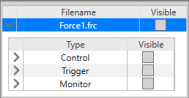
| Item | Description |
|---|---|
| Type | Control (force control), Trigger (force trigger), and Monitor (force monitor) are shown. |
| Visible | Shows / Not Show all force objects of the specified type.
|
Force Control, Force Trigger, Force Monitor
When the force object of the corresponding number is not defined yet, the checkbox is grayed.
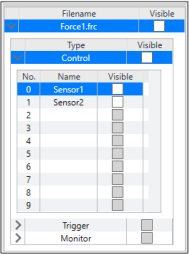
| Item | Description |
|---|---|
| Name | Show a force label. In the dialog, force label cannot be configured or edited. |
| Visible | Shows / Not Show the force object.
|
Force Guide
Show the display method of the force guide object in the sequence which is set by the force guide, and switch visible and not visible of the all force objects.

| Item | Description |
|---|---|
| Sequence | Show a force guide sequence name. |
| Visible | Shows / Not Show the all force objects.
|
Force Guide Object
When the force guide object type of the corresponding number (a step number in the sequence) is "Decision" or "SPELFunc", the checkbox is grayed. When the [Enabled] property of the object is set to "False", the [Name] is also grayed.
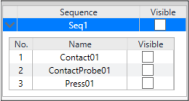
| Item | Description |
|---|---|
| Name | Show a force guide object name. |
| Visible | Shows / Not Show the force guide object.
|
Force Sensor
By registering Force Sensor, "Force Sensor" is displayed in the layout object.
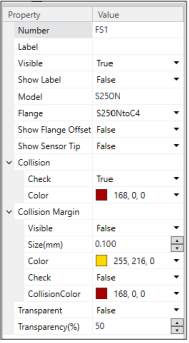
| Property | Value |
|---|---|
| Number | Displays a sensor number registered in the controller. |
| Label | Displays a sensor name registered in the controller. |
| Visible |
|
| Show Label |
|
| Model | Displays a model registered in the controller. |
| Flange | Displays a flange determined by combination of the robot and Force Sensor (default). Select "None" to hide. |
| Show Flange Offset |
|
| Show Sensor Tip |
|
For properties such as "Collision", "Collision Margin" or "Transparent", refer to the hand or layout objects properties.
Hands
Show a status of Visible and Collision of the configured hand.
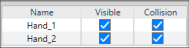
| Item | Description |
|---|---|
| Name | Shows a hand name. |
| Visible | Shows / Not Show the hand.
|
| Collision | Enable / Disable the collision detection.
|
Hand
When a hand is registered with a robot, "Hand" is added in the Layout Objects tree.
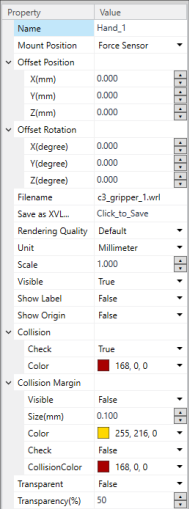
| Property | Value |
|---|---|
| Name | Hand name You can specify any name for a hand. (Default: Hand_1) |
| Mounted Position | Hand mounting position It can be attached to Force Sensor or Tool coordinate system. |
| Offset Position | Mounting offset from the robot end effector position. |
| Offset Rotation | Hand mounting direction |
| File name | CAD data file name of the hand. It cannot be changed. |
| Save as XVL… | The loaded hand object can be saved in the XVL format. Click [...] and specify the destination. When XVL-format hand data is loaded, this item is grayed out and cannot be used. |
| Rendering Quality | Set the rendering quality.
|
| Unit | Set the unit of length for the CAD data. |
| Scale | Set the scale ratio of the CAD data. |
| Visible |
|
| Show Label |
|
| Show Origin |
|
| Collision Property | Value |
|---|---|
| Check | Enables / disables the collision detection.
|
| Color | Specifies a color to be displayed when detecting a collision. Default: 168,0,0 |
| Collision Margin Property | Value |
|---|---|
| Visible |
|
| Size | Margin size |
| Color | Margin color Default: 255,216,0 |
| Check | Enables / disables the collision detection.
|
| CollisionColor | Specifies a color to be displayed when detecting a collision. Default: 168,0,0 |
| Transparent |
The front-back relation of the objects may be incorrect depending on the viewing angle. See details below. |
| Transparency | Specifies the transparency in the range of 1 to 90%. Transparency increases as the setting value becomes larger. |
Safety Function
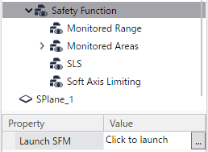
If option of safety function is enabled, "Safety Function" is displayed in the layout object. Moreover, from the property grid, you can call the Safety Function Manager.
| Property | Value |
|---|---|
| Launch SFM | To call the Safety Function Manager, press the [Click to launch] button. Safety Function Manager appears. |
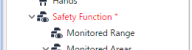
If there is a change in the safety function parameter, [Safety Function] is displayed in red in the object tree, as shown in the figure below. In such a case, you must start the Safety Function Manager to reflect the settings.
Monitored Range
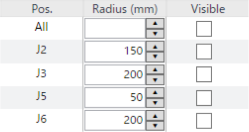
Shows robot monitored range are displayed or hidden, and shows the enabled and disabled of collision detection.
| Item | Description |
|---|---|
| Pos. | Displays "All" indicating all monitored ranges, or the joints for which individual monitored range can be set. If it is SCARA robot, displays J2 or J3. If it is 6-Axis robot, displays J2, J3, J5, and J6. |
| Radius | Radius of the robot monitored range Specifying a radius for "All" sets the radius of all configurable joints at once. When you change the radius of some joints, the value of the radius for "All" becomes blank. This setting is available only with Epson RC+ Standard Edition and Premium Edition. In the Basic Edition, make this setting from the Safety Function Manager. |
| Visible | Shows / Not Show the robot monitored range.
|
Monitored Areas
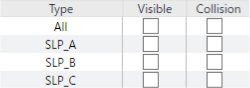
Shows monitored areas are displayed or hidden, and shows status of collision detection. Also, it switches visible and not visible of monitored areas, and switches enabled and disabled of collision detection.
| Item | Description |
|---|---|
| Type | Displays "All" indicating all monitored areas, or individual monitored areas SSLP_A, SLP_B, and SLP_C. |
| Visible | Shows / Not Show the robot monitored range.
|
| Collision | Enable / Disable the collision detection for the robot monitored areas.
|
SLP_A, SLP_B, SLP_C
Indicate whether each plane that configures the monitored areas is enabled or displayed, and also make the settings for the areas.
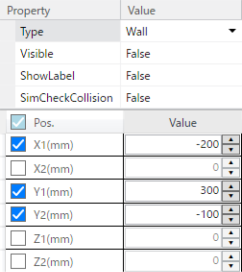
| Property | Value |
|---|---|
| Type | Setting of the range of monitored areas
|
| Visible | Shows/Hides the planes that configure the monitored areas
|
| ShowLabel | Shows / Hides "SLP_A(X1), SLP_A(X2), ..." as the object name
This setting is available only with Epson RC+ Standard Edition and Premium Edition. In the Basic Edition, the object name cannot be displayed. |
| SimCheckCollision | Enables/Disables collision detection in the simulator
|
| Item | Description |
|---|---|
| Pos. | Display X1, X2, Y1, Y2, Z1 and Z2 as a plane that configures monitored areas. Also displays a checkbox for switching between enabling or disabling each plane.
Select the header checkbox to enable all monitored areas. When the Visible property is True, displays the monitored areas. Clear the header checkbox to disable and hide all monitored areas. When some monitored areas are enabled, the header checkbox shows an indeterminate state. Enabling or disabling of each plane is available only with Epson RC+ Standard Edition and Premium Edition. In the Basic Edition, make this setting from the Safety Function Manager. |
| Value | Position of planes that configure the monitored areas This setting is available only with Epson RC+ Standard Edition and Premium Edition. In the Basic Edition, make this setting from the Safety Function Manager. |
SLS
Sets the TCP Offset value, a parameter of Safety Limited Speed, and specifies whether to show or hide it.
Setting and display are available only with Epson RC+ Standard Edition and Premium Edition. In the Basic Edition, only the TCP Offset position can be set from the Safety Function Manager.
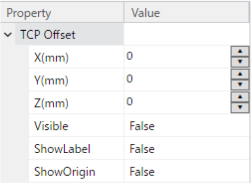
| Property | Value |
|---|---|
| X, Y, Z | Offset from the position of Tool 0 |
| Visible | Shows/Hides the dots at the offset position
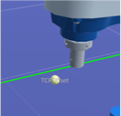 |
| ShowLabel | Shows/Hides "TCPOffset" as the object name
|
| ShowOrigin | Shows/Hides the coordinate system at the offset position
|
Soft Axis Limiting
Shows/Hides the setting range of Soft Axis Limiting, and configures the setting.
Setting and display are available only with Epson RC+ Standard Edition and Premium Edition. In the Basic Edition, only the Soft Axis Limiting value can be set from the Safety Function Manager, but the setting range cannot be displayed.
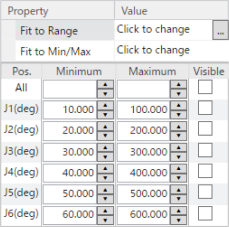
| Property | Value |
|---|---|
| Fit to Range | To set the limiting value of each axis to the same value as the setting of the Range, press the [Click to change] button. |
| Fit to Min/Max | To set the limiting value of each axis to the same value as the minimum value and maximum value of the range that can be set, press the [Click to change] button. |
| Item | Description |
|---|---|
| Pos. | Displays All indicating all joints, or the joints for which individual motion monitoring range can be set. Displays only J1 to J4 for a SCARA robot. For a 6-axis robot, J5 and J6 are also displayed. |
Lower-limit value Upper-limit value | Motion range monitoring value of each joint When you specify the setting value for All, the motion range monitoring value of all joints is specified as a batch. When you change the setting value of some joints, the setting value of All becomes blank. |
| Visible | Shows/Hides the monitored range based on the motion range monitoring value
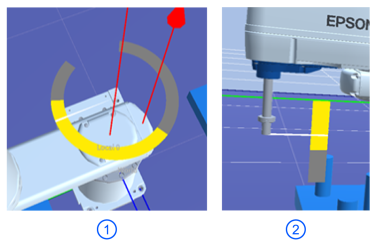
Place a checkmark for All to display the monitored range of all joints. Clear the checkmark to hide all monitored ranges. When you set to display some monitored ranges, the All checkbox shows an indeterminate state. As for the motion range, the monitored range of each axis is displayed in yellow and the range is displayed in gray. A white indicator is displayed at the current angle position.
2. Display example of linear axis |
Conveyor Tracking
Changes the display status of the configured conveyor tracking settings. This setting is available only with Epson RC+ Standard Edition and Premium Edition.
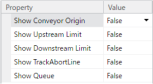
| Property | Value |
|---|---|
| Show Conveyor Origin | Shows/Hides the origin of the conveyor coordinate system.
|
| Show Upstream Limit | Shows/Hides the upstream limit of conveyor tracking.
|
| Show Downstream Limit | Shows/Hides the downstream limit of conveyor tracking.
|
| Show TrackAbortLine | Shows/Hides the tracking abort line of conveyor tracking.
|
| Show Queue | Shows/Hides the queue information of conveyor tracking.
|
KEY POINTS
Conveyor tracking simulation is available only with Epson RC+ Standard Edition and Premium Edition. Refer to the following video manual for an overview and detailed instructions.
Sample connections and projects are provided for conveyor tracking simulation. It is also used in the video manual mentioned above.
From the Epson RC+ 8.0 menu, select [Project]-[Open], then select [Projects]-[SimulatorDemos]-[ConvTrack_GX8_C], and then select [RC800 Series]–[CnvTrack GX8-C] from the Epson RC+ 8.0 toolbar-[Connection:] list box. You can actually check the operations and behaviors described in the video manual.
Conveyor
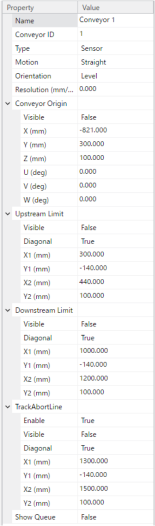
Once you add the conveyor tracking settings, "Conveyor" appears under "Conveyor Tracking" in the object tree. This operation is available only with Epson RC+ Standard Edition and Premium Edition.
| Property | Value |
|---|---|
| Name | Conveyor name Displays the "Name" set using [Tools]-[Conveyor Tracking]. It cannot be changed from the property grid. |
| Conveyor ID | Conveyor ID |
| Type | Tracking type Displays the "Type" set using [Tools]-[Conveyor Tracking]. It cannot be changed from the property grid.
|
| Motion | Tracking direction Displays the "Tracking Direction" set using [Tools]-[Conveyor Tracking]. It cannot be changed from the property grid.
|
| Orientation | Conveyor orientation Displays the "Conveyor Orientation" set using [Tools]-[Conveyor Tracking]. It cannot be changed from the property grid.
|
| Resolution | Encoder resolution Displays the currently set encoder resolution. It cannot be changed from the property grid. |
| Show Queue | Shows/Hides the queue information of conveyor tracking.
|
Conveyor Origin
When associated with a conveyor object, the origin of the conveyor coordinate system can be displayed on the conveyor object. You can also see the current setting values.
Property Value Visible Shows/Hides the origin of the conveyor coordinate system. - Display: True
- Not display: False (Default)
X, Y, Z, U, V, W Origin coordinates in conveyor coordinate system.
Displayed as coordinate values in the simulator World coordinates. It cannot be changed from the property grid.Upstream Limit
When associated with a conveyor object, the upstream limit for conveyor tracking can be displayed on the conveyor object. You can also see the current upstream limit setting values.
Property Value Visible Shows/Hides the upstream limit - Display: True
- Not display: False (Default)
Diagonal Diagonal upstream limit enabled/disabled
Displays the "Upstream Limit" set using [Tools]-[Conveyor Tracking]. It cannot be changed from the property grid.- Enable: True
- Disable: False
Limit Coordinates when diagonal upstream limit is disabled
Displays the "X1" set value, which is the "Upstream Limit" set using [Tools]-[Conveyor Tracking]. It cannot be changed from the property grid.X1, Y1, X2, Y2 Coordinates when diagonal upstream limit is enabled
Displays the "Upstream Limit" set using [Tools]-[Conveyor Tracking]. This is the relative position from the conveyor origin. It cannot be changed from the property grid.Downstream Limit
When associated with a conveyor object, the downstream limit for conveyor tracking can be displayed on the conveyor object. You can also see the current downstream limit setting values.
Property Value Visible Shows/Hides the downstream limit - Display: True
- Not display: False (Default)
Diagonal Diagonal downstream limit enabled/disabled
Displays the "Downstream Limit" set using [Tools]-[Conveyor Tracking]. It cannot be changed from the property grid.- Enable: True
- Disable: False
Limit Coordinates when diagonal downstream limit is disabled
Displays the "X1" set value, which is the "Downstream Limit" set using [Tools]-[Conveyor Tracking]. It cannot be changed from the property grid.X1, Y1, X2, Y2 Coordinates when diagonal downstream limit is enabled
Displays the "Downstream Limit" set using [Tools]-[Conveyor Tracking]. This is the relative position from the conveyor origin. It cannot be changed from the property grid.TrackAbortLine
When associated with a conveyor object, the tracking abort line for conveyor tracking can be displayed on the conveyor object. You can also see the current tracking abort line setting values.
Property Value Enable Tracking abort line enabled/disabled
Displays the "Tracking Abort Line" set using [Tools]-[Conveyor Tracking]. It cannot be changed from the property grid.- Enable: True
- Disable: False
Visible Shows/Hides the tracking abort line - Display: True
- Not display: False (Default)
Diagonal Diagonal tracking abort line enabled/disabled
Displays the "Tracking Abort Line" set using [Tools]-[Conveyor Tracking]. It cannot be changed from the property grid.- Enable: True
- Disable: False
Limit Coordinates when diagonal tracking abort line is disabled
Displays the "X1" set value, which is the "Tracking Abort Line" set using [Tools]-[Conveyor Tracking]. It cannot be changed from the property grid.X1, Y1, X2, Y2 Coordinates when diagonal tracking abort line is enabled
Displays the "Tracking Abort Line" set using [Tools]-[Conveyor Tracking]. This is the relative position from the conveyor origin. It cannot be changed from the property grid.
Conveyor calibration
A conveyor object set up in the simulator can be calibrated in the same way as a real conveyor. For details, see below.
Vision Conveyors
Sensor Conveyors
A conveyor object set up in the simulator can be simply calibrated based on the relative positions of the set conveyor object and robot object.
Select and right-click "Conveyor" in the layout tree to display the following context menu.
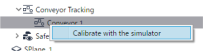
The following dialog box appears when "Calibrate with the simulator" is selected. Click the [Calibrate] button to automatically perform calibration based on the position and orientation information from the camera or sensor and the conveyor.
Vision calibration must be performed before setting "Vision" as the conveyor tracking type. For details about vision calibration, refer to the following manual.
"Vision Calibration" in "Vision Guide 8.0 Software"
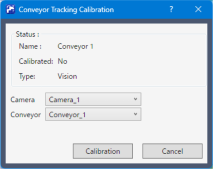
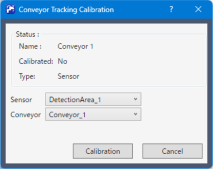
State
| Item | Description |
|---|---|
| Name | The name of the conveyor to be calibrated is displayed. This is the conveyor name selected in the layout tree. |
| Calibrated | Displays whether calibration has been performed. |
| Type | Displays the conveyor tracking type.
|
Conveyor Origin
| Item | Description |
|---|---|
| Camera | If the conveyor tracking type is "Vision", select the camera object to use for calibration. |
| Sensor | If the conveyor tracking type is "Sensor", select the detection area object to use for calibration. |
| Conveyor | Select the conveyor object to use for calibration. |
KEY POINTS
Tips for simple calibration
Whether or not a detection area object using a camera object is used depends on the conveyor tracking type set in the project conveyor tracking settings. For details on the conveyor tracking settings, see below.
The +X direction of the conveyor object is forward. Place the conveyor object according to the transport direction in advance.
If the conveyor tracking type is "Sensor", the center of the detection area object becomes the origin of the conveyor coordinate system. Setting the center of the detection area object at a height close to the gripping position of the workpiece (part) makes it easier to adjust the gripping position later.
If the conveyor tracking type is "Vision", place the camera object to look down on the conveyor from above. Operation is not guaranteed when the camera object is placed to view from below.
If you move the conveyor object, detection area object, or camera object used for simple calibration, the calibration results are not updated automatically. Perform the simple calibration again.
When a simple calibration is performed, the conveyor tracking project file is updated and saved. If calibration was already performed using the actual device, confirm in advance whether it is okay to update the file.
Although it is possible to apply the results of the simple calibration to the actual device, its precision and operation is not guarenteed. Therefore, it may cause unexepcted operation of the robot and even damage workpieces (parts) and other peripherals. When using an actual device, make sure to always perform calibration in the environment of the actual device.