Verifying Encoder Operation
After wiring the encoders, add them to Epson RC+ as described in the previous section. Next, confirm the operation by following the steps below.
Start Epson RC+.
Create a new project called “TestCnv”.
Set up the conveyor, using the information below for reference.
Creating Conveyors in a Project
- Encoder: Controller, Counter 1
- Type: Sensor
Select the encoder according to the actual wiring.
Make sure to perform the calibration, otherwise the conveyor tracking system cannot work properly. When you only check the encoder operation, it is not necessary to calibrate the conveyors.
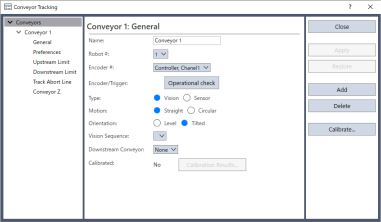
The pulse value can be read from the specified encoder by using the [Operational check] button and the Cnv_Pulse function in the program or command window.
Using the check operation window
The conveyor tracking operation check window is only available with Epson RC+ Standard Edition and above.
The following screen appears when you click the [Operational check] button.
Operate the conveyor and check that the current value of the conveyor encoder changes.
After confirming, click the [Close] button.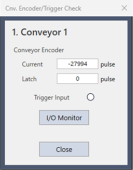
Using the command window
Execute the following output statements in the command window to read the pulses from the encoder.
Next, operate the conveyor and execute the same command again to verify that the encoder pulse value has changed.>print cnv_pulse(1)KEY POINTS
The above is an example of a command when the conveyor tracking number is 1.
Using a program
Run the program below and operate the conveyor. When the conveyor starts moving, the value of Cnv_Pulse will be changed.If you are unable to acquire or update the encoder pulse value, check the encoder wiring.
Function main
  Do
    Print Cnv_Pulse(1)
    Wait .5
  Loop
Fend
KEY POINTS
If the setting screen was closed before performing calibration, run [Project] - [Rebuild].