Verifying Hardware Conveyor Trigger / Vision Trigger
Verifying the Hardware Conveyor Trigger
Using the check operation window
The conveyor tracking operation check window is only available with Epson RC+ Standard Edition and above.Click the [Operational check] button.
Operate the conveyor and check that the current value of the conveyor encoder changes.
While the conveyor is moving, turn on the I/O output number to which you wired the trigger to latch the encoder pulse.
Confirm that the [Trigger Input] lamp is lit and the conveyor encoder latch value changes.
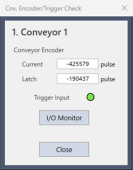
- If the [Trigger Input] lamp does not light up and the latch value does not change, check the wiring of the hardware trigger.
Using the command window
Move the conveyor and stop it.
Check the encoder pulse. Enter the following to the command window.
> Print CnvPulse (Conveyor number)Turn ON the I/O output number which the trigger is wired to. Latch the encoder pulse.
Check the latch pulse. Enter the following to the command window.
> Print Cnv_LPulse (Conveyor number)- If the same value as obtained in the Step 2 is latched, the verification is completed.
- If not, check the hardware conveyor trigger wiring.
Verifying the Vision Trigger
- Set the RuntimeAcquire property of the vision sequence to “Strobed” and the TriggerMode property to “Leading”.
- Execute the vision sequence and put it into the trigger waiting state.
- Turn ON the I/O output number which the trigger is wired to and release the shutter.
- If the captured image is displayed on the VisionGuide window, the verification is completed.
- If not, check the vision trigger wiring.