[Edit] Command (Project Menu)
The [Edit] command is used to define which program files, include files, point files, force files, and libraries are to be used in the current project. The [Project Files] contains a list of files in the current project folder. You can select which files to view from the [File Type] list box. The [Project Build] on the right shows the projects in the tree. The tree includes program files, include files, point files, force files, and libraries.
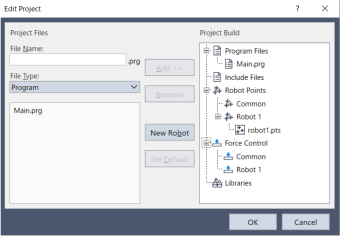
To use a file in the [Project Files] list in a project, click the [Add] button and register the file in the [Project Build] tree.
TIP
In the [Project Explorer], right-click on the program file or include file, or right-click on the target robot of the point file or force file to add an existing program from another project from the context menu. You can also add libraries maintained by Epson RC+ to a project in the same way.
Create a new program file, include file
Enter the file name in the [File Name] text box.
The name of the include file can also be the same name as a program. The name can include alphanumeric characters along with underscores( _ ).
Click the [Add] button. You will be prompted to create a new file. Click the [Yes] button. The file created will be added to the [Project Build] tree.
Add an existing program file or include file to a project
- Select the file that you want in the [File Type] box.
- Select the file name to add to the project from the list.
- Click the [Add] button. Alternatively, double click the selected file. Files are added to the [Project Build] tree.
Add a new point file, force file
Enter the file name to create in the [File Name] box.
The name can include alphanumeric characters along with underscores( _ ).
Select the robot folder you want to register from the [Project Build] tree.
Click the [Add] button. You will be prompted to create a new file. Click the [Yes] button. The file created will be added to the robot selected in the [Project Build] tree.
Add an existing point file or force file to the project
- Select the file that you want in the [File Type] box.
- Select the robot folder you want to register from the [Project Build] tree.
- Select the file name to add to the project from the list.
- Click the [Add] button. The file will be added to the selected robot of the [Project Build] tree.
Register libraries maintained by RC+.
- Select the library file from the [File Type] list box.
- Select the file name to add to the project from the list.
- Click the [Add] button. Libraries are added to the [Project Build] tree.
For details on using libraries, see below.
"Epson RC+ 8.0 Extension Library Builder 8.0 - Using Libraries"
Remove a program file, include file, point file, force file, or library
Select the file you want to remove in the [Project Build] tree.
Click the [Remove] button to remove the file from the [Project Build] tree.
The file is not deleted from the project folder, so you will still see the file in the file list.
To add a new robot
- Click the [New Robot] button. This adds a robot to [Robot Points], [Force Control] in the [Project Build] tree.
Set a point file or force file as the default
The default file is a file that is automatically loaded to a robot with the project load. Each robot can have one file as the default.
- Select a file to set as the default from each robot of the [Robot Points] or [Force Control] folder in the [Project Build] tree.
- Click the [Set Default] button. The file will be set as the default of the registered robot.
KEY POINTS
The common point file is a point file that is available for all robots on the controller. To use this point file, you need to load it from the SPEL+ program to the robot using LoadPoints command.