[Controller] Command (Tools Menu)

Select Controller from the [Tools] menu to open the [Controller Tools] dialog box.
From the [Controller Tools] dialog box, you can save and restore the complete controller configuration and the project using the [Backup Controller] and [Restore Controller] commands. You can also save and view controller status, and reset the controller.
Before servicing the system, you should execute [Backup Controller] and store the system configuration on an external media such as a USB memory key.
If required, you can use [Restore Controller] to restore previously stored data.
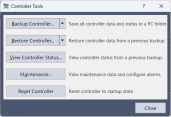
Backup Controller
Use Backup Controller to save controller configuration data on your PC.
The current status is saved in a folder containing several files. The controller configuration settings, task status, I/O status, robot status, and simulator data are saved in these files. This is useful for users to send a snapshot of the controller status to the supplier of your region or to Epson technical support, should the need arise.
KEY POINTS
Backup Controller is the same as Backup Controller Function and Controller Status Storage Function that saves the state to the USB memory connected to the controller.
Each is saved in the following folder.
- Epson RC +: B_Controller type_Serial number_Date and time
- Controller: BU_Controller type_Serial number_Date and time
This preference allows you to configure whether project files are saved or not when the controller status is exported. For details, refer to [Setup]-[System Configuration]-[Controller]-[Preferences].
With RC800 series Controllers, you can select whether to save Controller data when an error occurs. Select [Include controller data in backup when error occurs] from the pull-down menu to the right of the [Backup Controller] button.
Select Controller from the [Tools]
menu to open the [Controller Tools] dialog box.Click on the [Backup Controller] button to open the [Browse For Folder] dialog box.
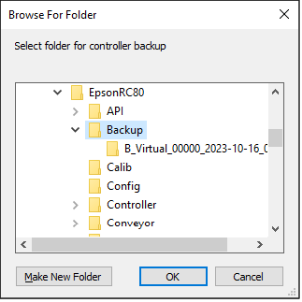
Select the disk drive and parent folder where you want to save the information.
You can create a new parent folder by clicking the [Make New Folder] button.
Click the [OK] button.
A new folder containing the backup files will be created. The selected folder will be named “B_” followed by the controller type, the controller serial number, and the date / time.
Restore Controller
Use Restore Controller to load controller settings from previously saved backup data. You cannot restore the controller data while tasks are running. If you attempt to do so, an error message will be displayed.
To restore controller configuration:
Select Controller from the [Tools]
menu to open the [Controller Tools] dialog box.Click on the [Restore Controller] button to open the [Browse For Folder] dialog box.
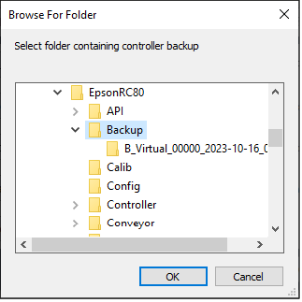
Select the drive and folder where the information is stored.
B_Controller type_Serial number_Date and time
KEY POINTS
You can also select a status storage folder that has been backed up on a USB memory connected to the Controller.
BU_Controller type_Serial number_Date and time
Click the [OK] button to display the [Restore Controller] dialog.
Click the [Display] button to display the [Controller Status Viewer] dialog box to check saved file information.
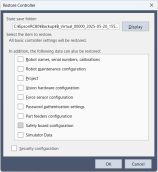
Robot names, serial numbers, calibrations checkbox
This checkbox allows you to restore the robot name, robot serial number, Hofs data, and CalPls data. Be aware that if the wrong Hofs data is restored, the robot may move to wrong positions. This is turned off by default.
A Safety Board password is necessary when using Controller with Safety Board.
Robot maintenance configuration checkbox
This checkbox allows you to restore the parts consumption data. For details, refer to the following manual.
- For RC700-D, RC700-E, RC800 series: "Robot Controller Manual - Alarm"
- For RC700, RC90 series: "Robot Controller Maintenance Manual - Alarm"
- For T, VT series: "Robot Maintenance Manual - Alarm"
This is turned off by default.
Check this checkbox when restoring a backup data which is retrieved while [Setup]-[System Configuration]-[Controller]-[Preferences]-[Enable robot maintenance data] is enabled. If not checked, the maintenance data will not be reflected.
Project checkbox
This checkbox allows you to restore project files. Project files are restored to the PC and controller. On a PC, project files are restored to the project path used when building the project. However, if the project path is not included in the project save destination in Preferences, project files will be saved to the default project save location. If a project with the same name already exists, the existing project will be overwritten. This is turned off by default.
When the project is restored, all the values of Global Preserve variables are restored. For details about restoring backup variable values, see below.
Vision hardware configuration checkbox
This checkbox allows you to restore the vision hardware configuration. This is turned off by default. For details, refer to the following manual.
"Epson RC+ 8.0 option: Vision Guide 8.0"
Force sensor configuration checkbox
This checkbox allows you to restore the force sensor configuration. This is turned off by default. For details, refer to the following manual.
"Epson RC+ 8.0 option Force Guide 8.0"
Password authentication settings checkbox
This checkbox allows you to restore the connection password that was stored in the controller.
For details on connection passwords, see details below.
Part feeders configuration
This checkbox allows you to restore the setting of part feeding communication. This is turned off by default. For details, refer to the following manual.
"Epson RC+ 8.0 Option Part Feeding 8.0 Introduction & Software"
Safety Board Settings
Allows you to restore the setting of the safety function. This is turned off by default. When the Controller is equipped with a Safety Board, a Safety Board password is necessary when checking. For details, refer to the following manual.
"Robot Controller Safety Function Manual - Restoring Saved (Backed-up) Settings"
Simulator data
Allows you to restore the simulator data settings. This is turned off by default. It can be selected if the backup data includes simulator data. See details below.
"Epson RC+ Simulator - Description of Functions - Backing Up and Restoring Simulator Data"
KEY POINTS
Restoring simulator data is available only with Epson RC+ Standard Edition or higher.
Security configuration checkbox
This checkbox allows you to restore the security configuration. This is turned off by default. See details below.
Click the [OK] button to restore the system information.
KEY POINTS
Restore the system configuration saved using Backup Controller only for the same system.
When different system information is restored, the following warning message appears.
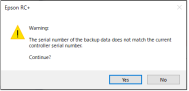
Click the [No] button to cancel restoration of data except for special situations such as connecting to a virtual controller, or Controller replacement.
When restoring the backup which includes the data of the robot configured to the Drive Unit, be sure to restore the data while the Drive Unit is connected and turned on.
When restoring the backup including the unsupported robot information to the target controller, an error occurs.
If the file "IOLabels.dat" which saves I/O labels exceed 400 kB, a parser communication error may occur. If an error occurs, adjust the number of characters for I/O labels not to exceed 400 kB.
You cannot restore the backup including PG to the virtual controller.
You cannot restore the data that is backed up by the virtual controller to T series and VT series manipulators.
You cannot restore the data if the robot model used by the virtual controller and the Controller are different.
You can select [Safety board configuration] when all of the following conditions are met.
- Controller with Safety Board,
- Backup Controller has the safety board information
For the Controller with the safety board installed, selecting one or more of the items below will start Safety Function Manager after restarting the Controller.
Robot names, serial numbers, calibrations checkbox
Safety Board Settings
For details, refer to the following manual.
"Robot Controller Safety Function Manual"
Selective Restore
KEY POINTS
You need Epson RC+ 8.0 Ver. 8.1.0.0 or later and an Epson RC+ Standard Edition or higher license to use Selective Restore.
Restores the specified parameters from the backup data. You cannot restore the controller data while tasks are running. An error message is displayed if you attempt to restore the controller data.
The specified parameter configuration is restored from the controller.
Select [Controller] from the [Tools]
menu to open the [Controller Tools] dialog box.Click on the [Restore Controller] dropdown menu.
Click [Selective Restore] in the dropdown list to open the [Browse For Folder] dialog box.
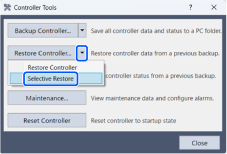
Select the drive and folder where the information is stored.
B_Controller type_Serial number_Date and time
Click the [OK] button to display the [Restore Parameter] dialog box.
Click the check box on this screen to individually select the parameters to restore from the list.
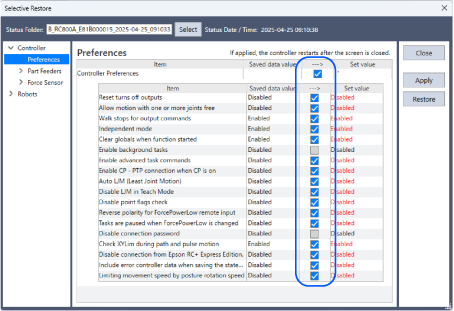
Controller
- Preferences: Allows you to restore the controller preference settings. The controller is restarted after the setting is applied and this screen is closed.
- Remote User Outputs: Allows you to restore the controller remote user output settings. The controller is restarted after the setting is applied and this screen is closed.
- Part Feeding: Allows you to restore the controller Part Feeding settings.
- Force Sensor: Allows you to restore the controller force sensor settings. The controller is restarted after the setting is applied and this screen is closed.
Robots: Allows you to individually restore the robot parameters. Click the toggle button to expand the elements to allow the parameters to be restored more precisely.
Safety Board Settings: Allows you to restore the safety function settings. Click the Apply button to launch the Safety Function Manager. Use the Safety Function Manager to send parameters. The controller is rebooted after the parameters are sent.
KEY POINTS
- [Safety Board Settings] is displayed when all of the following conditions are met.
- The controller is equipped with a safety board
- The Backup Controller includes safety board information
- Parameters whose settings are changed when they are restored are displayed in red.
- Click the [Restore] button to restore any unapplied changes.
- Click the [Select] button to display the [Browse For Folder] dialog box that allows you to change the backup data to be restored.
View Controller Status
Click the [View Controller Status] button to view the status data stored from a previous status export. See details in the previous section “Backup Controller”.
To view controller status:
Select Controller from the [Tools] menu to open the [Controller Tools] dialog box.
Click on the [View Controller Status] button to open the [Browse For Folder] dialog.
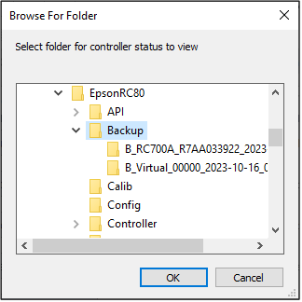
Select the drive and folder where the information is stored.
- RC+: B_Controller type_Serial number_Date and time
- Controller: BU_Controller type_Serial number_Date and time
Click the [OK] button to view the selected controller status.
The [Controller Status Viewer] dialog will be displayed.
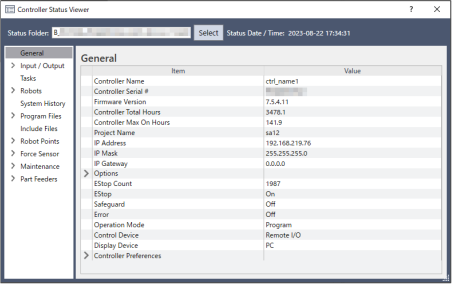
Select items to view from the tree on the left side of the dialog. If the items includes simulator data, you can also check the contents.
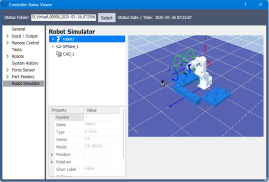
To view another controller status, click the [Select] button next to the [Status Folder] name, and then select a new status folder.
Reset Controller
Use the [Reset Controller] button to reset the SPEL controller.
Maintenance
It shows the parts consumption data for the Controller or Manipulator parts. For details, refer to the following manual.
- For RC700-D, RC700-E, RC800 series: "Robot Controller Manual - Alarm"
- For RC700, RC90 series: "Robot Controller Maintenance Manual - Alarm"
- For T, VT series: "Robot Maintenance Manual - Alarm"