[Tools]-[Robot Manager]-[Weight/Inertia] Panel
Use this page to change the hand weight and Inertia parameters for the robot.
For more details on Weight settings, refer to the following manual:
"SPEL+ Language Reference - Weight"
For more details on Inertia settings, refer to the following manual:
"SPEL+ Language Reference - Inertia"
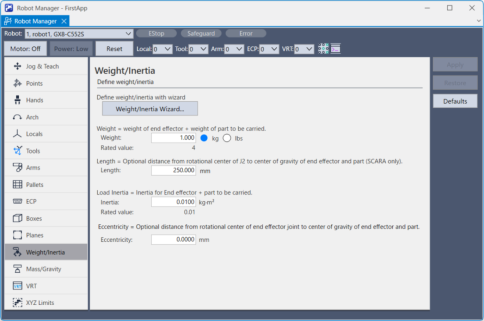
| Item | Description |
|---|---|
| Weight/Inertia Setting Wizard | This button starts the Weight/Inertia Setting Wizard. Follow the instructions for each step of the wizard to set the weight and inertia. See details in the next section. |
| Weight | Type in the new total weight of the payload on the robot. |
| kg/lbs | Select which unit you would like to view. (kg/lbs) |
| Length | Change it when you use SCARA robots with special specifications which length of Arm #2 has been changed. The arm length is the distance from the center of the second axis to the center of the third axis. |
| Moment of inertia | Enter the moment of inertia of the hand, including the moment of inertia of the robot payload in units of kg.m2. |
| Eccentricity | Enter the new eccentricity value in millimeters. This is the distance from the joint rotational center to the center of gravity of end effector and part. |
| Apply | Sets the current values. |
| Restore | Reverts to the previous values. |
| Defaults | Displays factory default settings. |
KEY POINTS
You need Epson RC+ 8.0 Ver. 8.1.0.0 or later and an Epson RC+ Standard Edition or higher license to use the Weight/Inertia Wizard.
Wizard
The wizard guides you through the setup of the “Weight, Inertia, Eccentricity/Offset Measurement Utility.” See details below.
Weight, Inertia, and Eccentricity / Offset Measurement Utility
Select [Robot Manager]-[Weight/Inertia Setting Wizard] tab to open the Weight/Inertia panel.
Click the [Weight/Inertia Setting Wizard] button. The following dialog box appears.
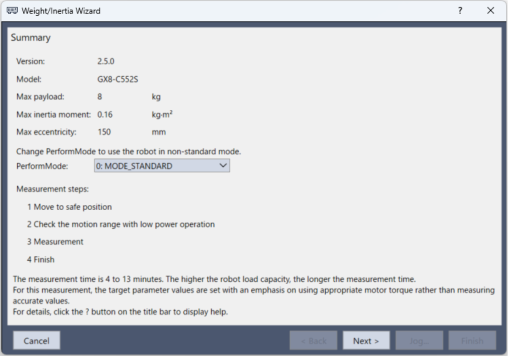
Check the displayed details. If necessary, change the PerformMode setting and click the [Next] button.
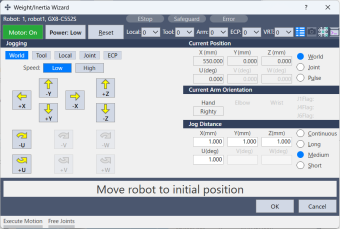
Remove any objects that may cause a collision from the displayed operating range, or click the [Jog] button and move the robot. Click the [Next] button when complete.
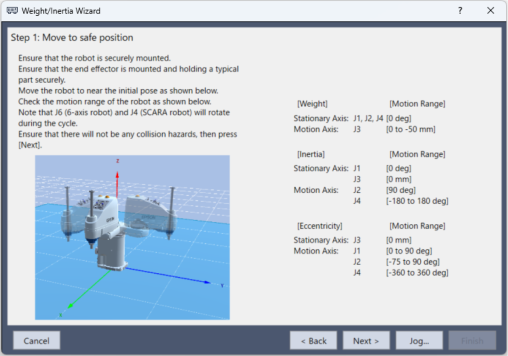
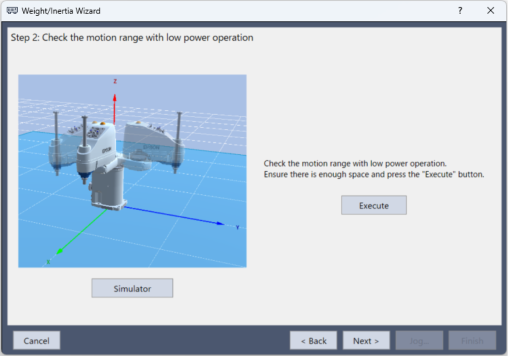
A screen is displayed to confirm the measurement operating range. Click the [Execute] button to start checking the operating range. The [Next] button is enabled when the check is complete. Click the [Next] button.
The [Simulator] button is displayed if a virtual controller is connected. To check the operation while looking at the simulator screen, click the [Simulator] button to display the simulator screen.
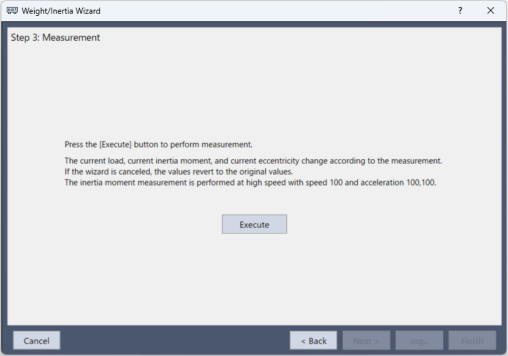
The measurement window appears. Click the [Execute] button to start the measurement. The next page appears when the measurement is complete.
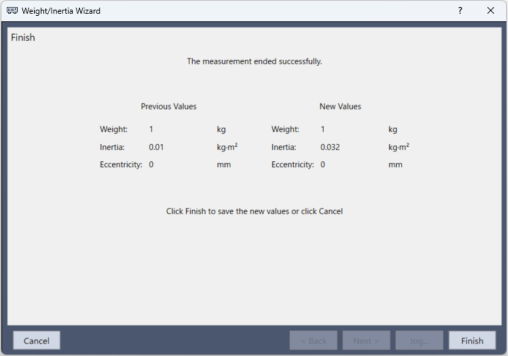
The measurement results are displayed as shown below. Click [Finish] to apply the new weight and eccentricity parameters.