Setting Direct Teach (Force Setting)
Change the setting of Direct Teach function.
The following screen appears by pressing the [F8] key in the [Direct Teach + Touch Jog] screen.
Press the [Page Up] [Page Down] keys to see all pages.
| 6-axis Robot | |
|---|---|
| Page 1 | 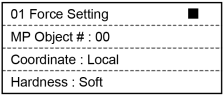 |
| Page 2 | 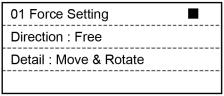 |
| Key operation | Description |
|---|---|
| [Numeric keys] | (Available in the number input mode. Inputs a number.) |
| CLR | (Available in the number input mode. Clears the number to 0.) |
| ▲ / ▼ | Select an item to be modified. |
| ◀ / ▶ | Display the choices rotationally and use ▲ / ▼ key to select and temporary fix the items. |
| Page Up / Down | Changes to the previous or next page. |
| OK | Fix the changes and rerun to the [Direct Teach + Touch Jog] screen. |
| Cancel | Cancel the changes and rerun to the [Direct Teach + Touch Jog] screen. |
| F5 | Return to the [Direct Teach + Touch Jog] screen. |
Changing Mass Property Object Number
Use ▲ / ▼ key to move the cursor to “MP Object # :”.

Use ◀ / ▶ key and move the cursor to the position to be changed.
Use [Numeric keys] key to change the mass property number.
Perform either of the following steps.
Update Direct Teach setting:
Press the [OK] key.
Update the Direct Teach settings and return to the [Direct Teach + Touch Jog] screen.
Do not uprate Direct Teach setting:
Press the [Cancel] key.
Return to the [Direct Teach + Touch Jog] screen without updating the the Direct Teach settings.
Set other parameters of Direct Teach settings:
Use ▲ / ▼ key to move the cursor to the other parameter.
Changing the Coordinate system mode
Use ▲ / ▼ key to move the cursor to “Coordinate”.

Use ◀ / ▶ key to change the coordinate system mode.
Display changes in order of Base → Local → Tool
Perform either of the following steps.
Update Direct Teach setting:
Press the [OK] key.
Update the Direct Teach settings and return to the [Direct Teach + Touch Jog] screen.
Do not uprate Direct Teach setting:
Press the [Cancel] key.
Return to the [Direct Teach + Touch Jog] screen without updating the the Direct Teach settings.
Set other parameters of Direct Teach settings:
Use ▲ / ▼ key to move the cursor to the other parameter.
Changing the hardness of Direct Teach
Use ▲ / ▼ key to move the cursor to “Hardness”.

Use ◀ / ▶ key to change the hardness of Direct Teach.
Display changes in order of Soft → Medium → Hard.
Perform either of the following steps.
Update Direct Teach setting:
Press the [OK] key.
Update the Direct Teach settings and return to the [Direct Teach + Touch Jog] screen.
Do not uprate Direct Teach setting:
Press the [Cancel] key.
Return to the [Direct Teach + Touch Jog] screen without updating the the Direct Teach settings.
Set other parameters of Direct Teach settings:
Use ▲ / ▼ key to move the cursor to the other parameter.
Changing the direction
Use ▲ / ▼ key to move the cursor to “Direction”.

Use ◀ / ▶ key to change the direction.
Display changes in order of Free → Line → Plane → Rotation.
Use ▲ / ▼ key to move the cursor to “Detail”.

Use ◀ / ▶ key to set the details of the motion direction.
Display changes depending on the motion direction selected in “Direction”.
Use the following table as a reference to set the details of the motion direction.
| Direction | Detail | Description |
|---|---|---|
| Free | Move&Rotate Move Rotate | Move the end effector freely according to the selected coordinate system mode. |
| Line | X Y Z | Move the end effector on the selected straight line according to the selected coordinate system mode. |
| Plane | XY YZ XZ | Move the end effector on the selected plane in the selected coordinate system mode. |
| Rotation | RX RY RZ | Rotate the end effector around the selected axis according to the selected coordinate system mode. |
Perform either of the following steps.
Update Direct Teach setting:
Press the [OK] key.
Update the Direct Teach settings and return to the [Direct Teach + Touch Jog] screen.
Do not uprate Direct Teach setting:
Press the [Cancel] key.
Return to the [Direct Teach + Touch Jog] screen without updating the the Direct Teach settings.
Set other parameters of Direct Teach settings:
Use ▲ / ▼ key to move the cursor to the other parameter.