Setting Touch Jog
Change the setting of Touch Jog function.
The following screen appears by pressing the [F9] key in the [Direct Teach + Touch Jog] screen.
Press the [Page Up] [Page Down] keys to see all pages.
| 6-axis Robot | |
|---|---|
| Page 1 | 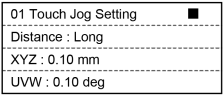 |
| Page 2 | 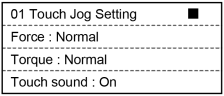 |
| Key operation | Description |
|---|---|
| [Numeric keys] | (Available in the number input mode. Inputs a number.) |
| CLR | (Available in the number input mode. Clears the number to 0.) |
| ▲ / ▼ | Select an item to be modified. However, temporary fix the input value in the number input mode. |
| ◀ / ▶ | Display the choices rotationally and use ▲ / ▼ key to select and temporary fix the items. However, temporary fix the input value in the number input mode. |
| Page Up / Down | Changes to the previous or next page. |
| OK | Fix the changes and rerun to the [Direct Teach + Touch Jog] screen. |
| Cancel | Cancel the changes and rerun to the [Direct Teach + Touch Jog] screen. |
| F5 | Return to the [Direct Teach + Touch Jog] screen. |
Changing the jogging amount
Use ▲ / ▼ key to move the cursor to “Distance:”.

Use ◀ / ▶ key to change the jogging amount.
The display changes in order of Long → Medium → Short.
The following values are set by default.
Long: 5.00 / 5.00
Medium: 1.00 / 1.00
Short: 0.10 / 0.10
* XYZ directions [mm] / UVW directions [deg]
Change the jogging amount to desired value:
Use ▲ / ▼ key to move the cursor to the line of “XYZ” or “UVW”.
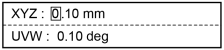
Use ◀ / ▶ key and move the cursor to the position to be changed.
Use [Numeric keys] to input numbers.
Perform either of the following steps.
Update Direct Teach setting:
Press the [OK] key.
Update the Direct Teach settings and return to the [Direct Teach + Touch Jog] screen.
Do not uprate Direct Teach setting:
Press the [Cancel] key.
Return to the [Direct Teach + Touch Jog] screen without updating the the Direct Teach settings.
Set other parameters of Direct Teach settings:
Use ▲ / ▼ key to move the cursor to the other parameter.
Setting the sensitivity of Touch Jog
Use ▲ / ▼ key to move the cursor to the line of “Force” or “Moment”.
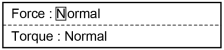
Use ◀ / ▶ key to change the sensitivity of Touch Jog.
To change the sensitivity related to movement:
Change the “Force” value.
Display switches in order of Sensitive → Normal → Dull.
To change the sensitivity related to movement:
Change the “Torque” value.
Display switches in order of Sensitive → Normal → Dull.
Perform either of the following steps.
Update Direct Teach setting:
Press the [OK] key.
Update the Direct Teach settings and return to the [Direct Teach + Touch Jog] screen.
Do not uprate Direct Teach setting:
Press the [Cancel] key.
Return to the [Direct Teach + Touch Jog] screen without updating the the Direct Teach settings.
Set other parameters of Direct Teach settings:
Use ▲ / ▼ key to move the cursor to the other parameter.
Set enable / disable the “Touch sound” of Touch Jog
Use ▲ / ▼ key to move the cursor to the line of “Touch sound”.

Use ◀ / ▶ key to enable / disable the “Touch sound” of Touch Jog.
Display switches from On → Off.
Perform either of the following steps.
Update Direct Teach setting:
Press the [OK] key.
Update the Direct Teach settings and return to the [Direct Teach + Touch Jog] screen.
Do not uprate Direct Teach setting:
Press the [Cancel] key.
Return to the [Direct Teach + Touch Jog] screen without updating the the Direct Teach settings.
Set other parameters of Direct Teach settings:
Use ▲ / ▼ key to move the cursor to the other parameter.