Impedance Tester
CAUTION
Executing the impedance test with improper settings of the Force Sensor, coordinate transformation, and gravity compensation may result in unintended motion. Be careful when configuring the settings and check operation before executing the impedance test.
For details of the setting and operation check, refer to the following manual.
Epson RC+ Option Force Guide
The [Jog & Teach] screen is used to change the mode to the impedance test mode.
First, check the preset settings to execute the impedance test.
Press the [Shift] key, then press the [▲] key in the [Jog & Teach] screen. The following screen appears.
If Force Sensor is not connected or linked to the robot:
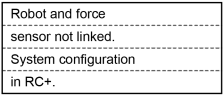
Press the [OK] key to return to the [Jog & Teach] screen.
If Force Sensor is linked to the robot:

The screen confirms with the user that the hand or workpiece at the end of the Force Sensor do not touch other object since it may apply external force to the force sensor.
[Guide] key : Displays the key operation guide for this screen.
Perform either of the following steps.
If no external force is considered to be applied:
Press the [OK] key to move to the following screen.
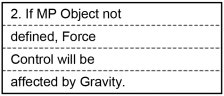
If external force is considered to be applied:
Press the [Cancel] key to return to the [Jog & Teach] screen.
If the mass property object is not configured properly, the force control may make unintended motion due to the gravity effect. This screen confirms with the user that the mass property object is configured properly.
[Guide] key : Displays the key operation guide for this screen.
Perform either of the following steps.
If the mass property object has been configured:
Press the [OK] key to move to the [Impedance Tester] screen.
If the mass property object has not been configured:
Press the [Cancel] key to return to the [Jog & Teach] screen.
CAUTION
Be sure to reset the Force Sensor with no external force applied to it.
If it is reset with an external force applied to it, the state in which an external force applied is “0”. Therefore, if the force applied is removed, the Force Sensor detects a force even if no force is applied.
If the force control function is performed in this state, the robot may move unintentionally. Caution is required in this regard.
[Impedance Tester] screen

| Screen | Description | Example (for the above screen) |
|---|---|---|
| Impedance Tester | Screen title | |
| ■ | Motor status ■ : ON / No display: OFF | ON |
| RB01 | Robot number | Select robot 1 |
| FS1 | Force Sensor number | Select Force Sensor 1 |
| T00 | Tool number | Select Tool0 |
| L00 | Local number | Select Local0 |
| A00 | Arm number | Select Arm0 |
| FC001 | Force control object (FC) number | Select force control object 1 |
| MP01 | Mass property object (MP) number | Select mass property object 1 |
| P000 | Point number | Select Point 0 |
| Key operation | Description |
|---|---|
| OK | Returns to the [Jog & Teach] screen. |
| Cancel | Returns to the [Jog & Teach] screen. |
| Reset | Executes Reset. |
| Motor | Turns ON / OFF the motor. |
| Teach | Executes a Teach operation. |
| Save | Saves a point file. For details, refer to the following: |
| Load | Loads a point file. For details, refer to the following: |
| ▲ / ▼ | Adds / subtracts point number by one. |
| ◀ / ▶ | Subtracts / adds point number by ten. |
| Local | Switches to Local number input mode. |
| Tool | Switches to Tool number input mode. |
| Arm | Switches to Arm number input mode. |
| Guide | Displays the key operation guide. |
| F1 | Moves to the [Sensor Reset] screen. |
| F2 | Switches to the force control object number input mode. |
| F3 | Switches to the mass property object number input mode. |
| F4 | Moves to the [Motion Command] screen. For details, refer to the following: (Pressing the [F5] key returns to the [Impedance Tester] screen.) |
| F5 | Returns to the [Jog & Teach] screen. |
| F6 | Moves to the [I/O Command] screen. For details, refer to the following: (Pressing the [F5] key returns to the [Impedance Tester] screen.) |
| F10 | Switches to the point input mode. |